Coskey 0.13.0 splits the ChatGPT.app features into two places:
- Status → ChatGPT.app is a read-only check with no switches, repair or write actions;
- Personalization is a separate page for ChatGPT.app defaults, per-item overrides and managed launches.
Personalization applies only to ChatGPT.app when it uses an API key. Your settings stay on this computer; Coskey does not upload account information, and enabling an item does not grant an OpenAI account, plan or regional permission.
Screenshots come from an isolated macOS instance. Windows uses different entry names and launcher format, but follows the same workflow.
1. What each entry point does
| Entry point | What it is for |
|---|---|
| Status → ChatGPT.app | Check the app version, plugin archive and marketplace, plugin installation and enablement, execution host, native messaging hosts, local Computer Use dependencies, interface language setting and app_egress status |
| Personalization | Enable personalization, adjust individual features, update or restore defaults, generate a fixed launcher and start ChatGPT.app through Coskey |
The Status page does not modify ChatGPT.app, your Codex configuration, the plugin cache, browser local storage, the system proxy or root certificates. To change a capability, click Open Personalization from that page instead of looking for the old one-click repair flow.
2. Before you begin
Confirm that:
- Coskey is version 0.13.0 or later;
- ChatGPT.app is installed;
- ChatGPT.app is signed in with an API key when you want to use personalization;
- you reopen ChatGPT.app through Coskey’s managed launcher after changing settings.
If ChatGPT.app uses a ChatGPT account, empty authentication or an unknown authentication method, the Personalization page explains why it does not apply, and the local proxy does not intercept that flow. You can still use the Status page for checks, but do not expect personalization options to carry over to a ChatGPT account session.
Personalization is not authorization. It does not remove account or workspace restrictions, install missing plugins, grant system permissions or start local services for you.
3. Enable personalization
- Open Personalization from the left sidebar in Coskey.
- In Usage status, confirm that the account mode says API key.
- Click Turn on.
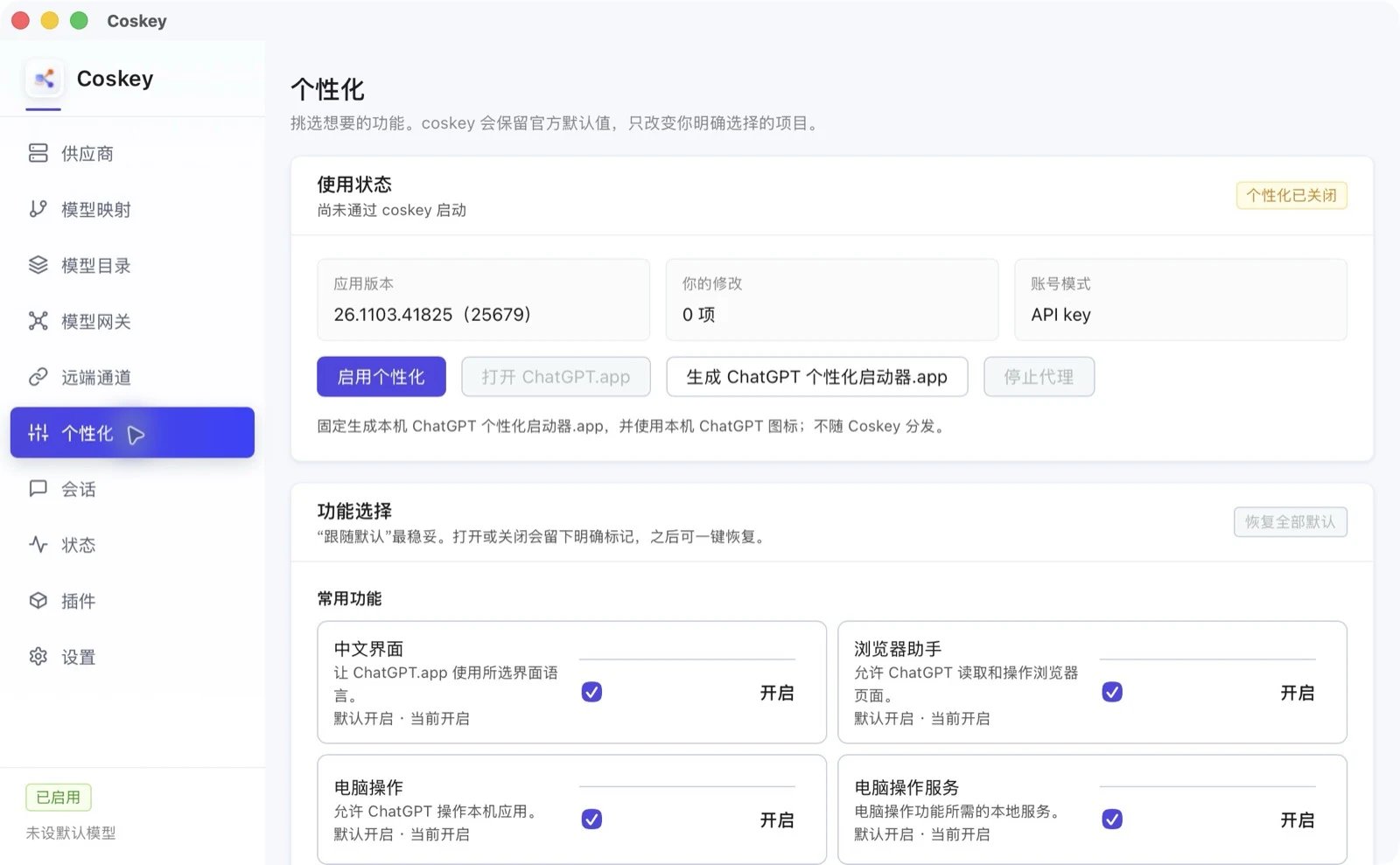
- Read the confirmation and click Confirm. It repeats that settings apply only to API-key sessions, stay on this computer, and do not add an account, plan or regional permission.
After personalization is on, Open ChatGPT.app becomes available. The same card also offers the platform-specific launcher action.
4. Adjust feature options
Options are grouped under common features, interface and efficiency, Office, and advanced settings. Every row shows its default, current value and source. Checking a box saves an explicit on value; clearing it saves an explicit off override.
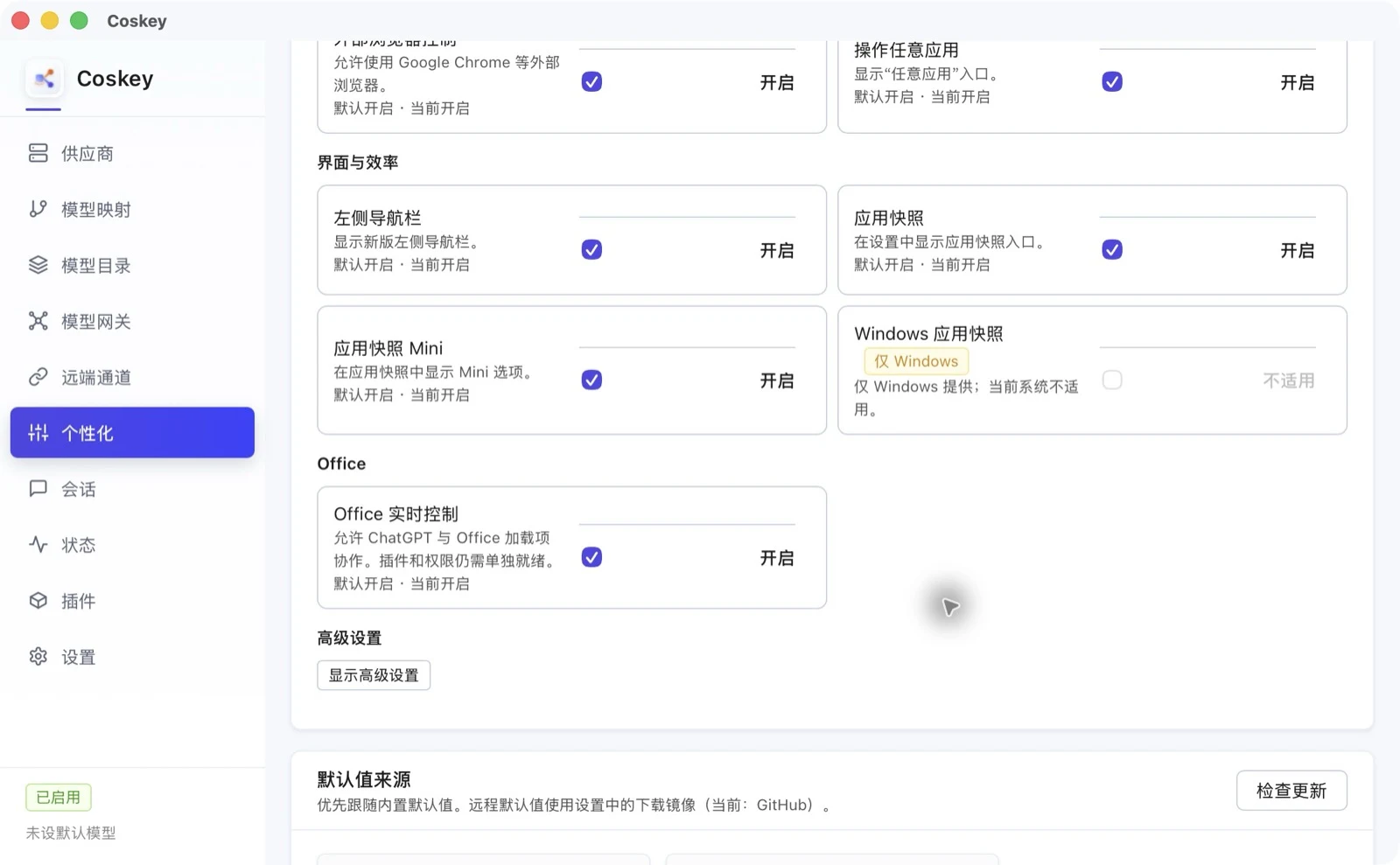
| Option | What it controls |
|---|---|
| Chinese interface | Uses the selected interface language; an explicit language in the app still takes priority |
| Browser assistant | Makes the in-app Browser capability available; a working plugin is still required |
| Computer use | Makes local Computer Use available; plugins and system permissions are still required |
| Computer use service | The local service prerequisite for Computer Use |
| External browser control | Control for Chrome and other external browsers; the matching plugin is still required |
| Operate any app | Shows the Computer use → Any app entry; system permissions and other conditions still apply |
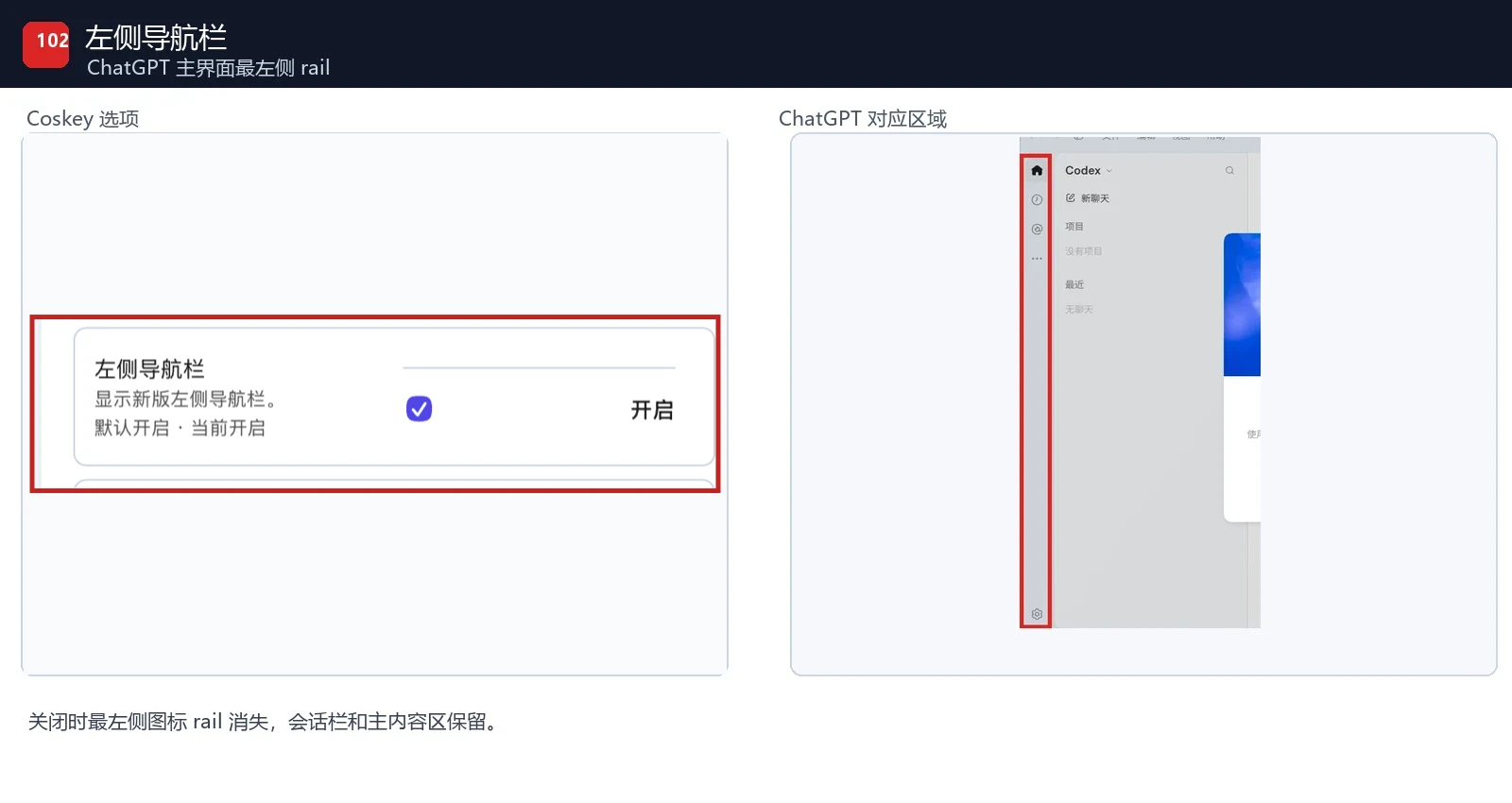
| Left navigation | Shows the newer icon rail; turning it off restores the older single-column layout |
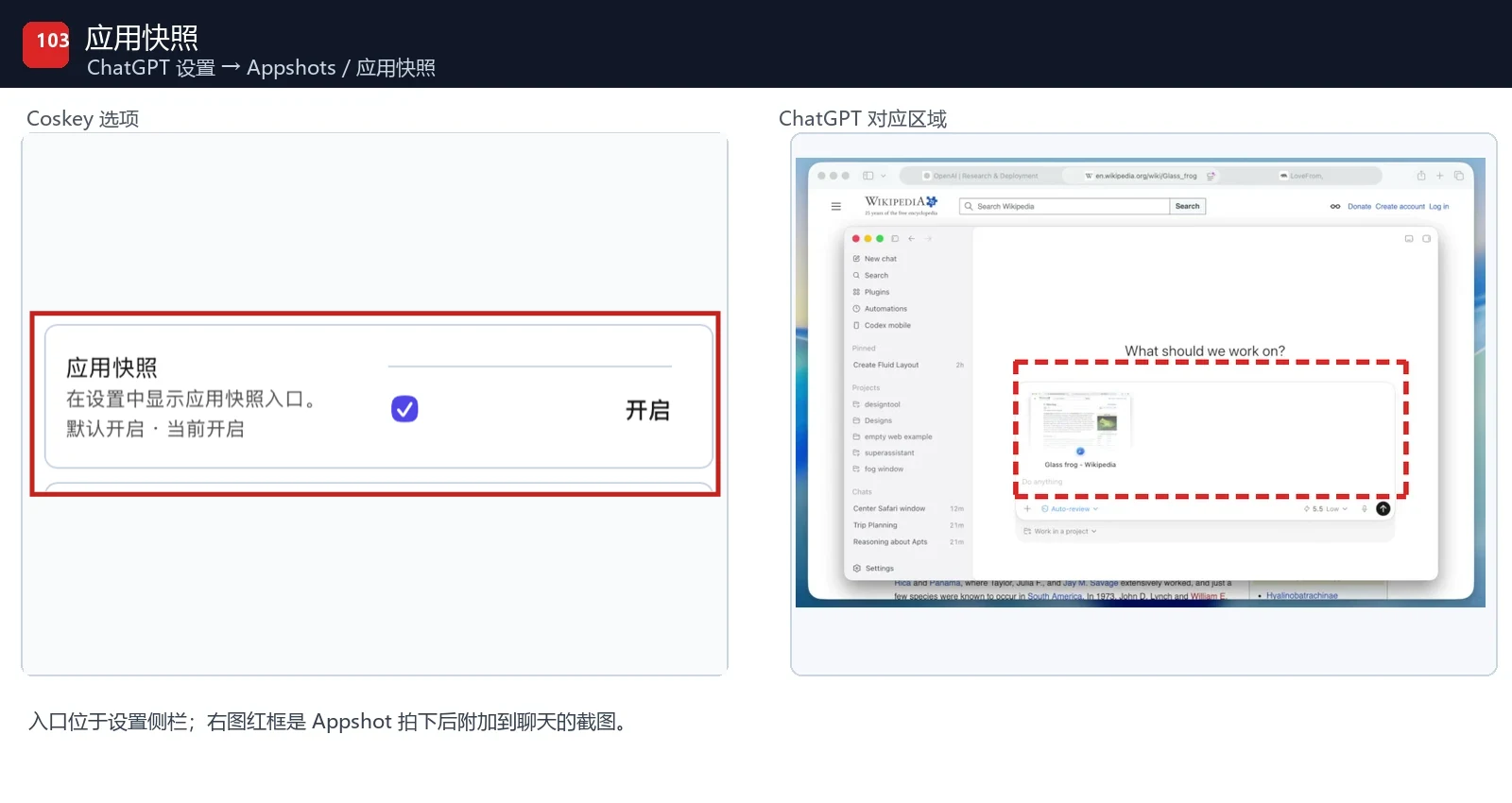
| App snapshots | Shows the App snapshots entry in ChatGPT.app settings |
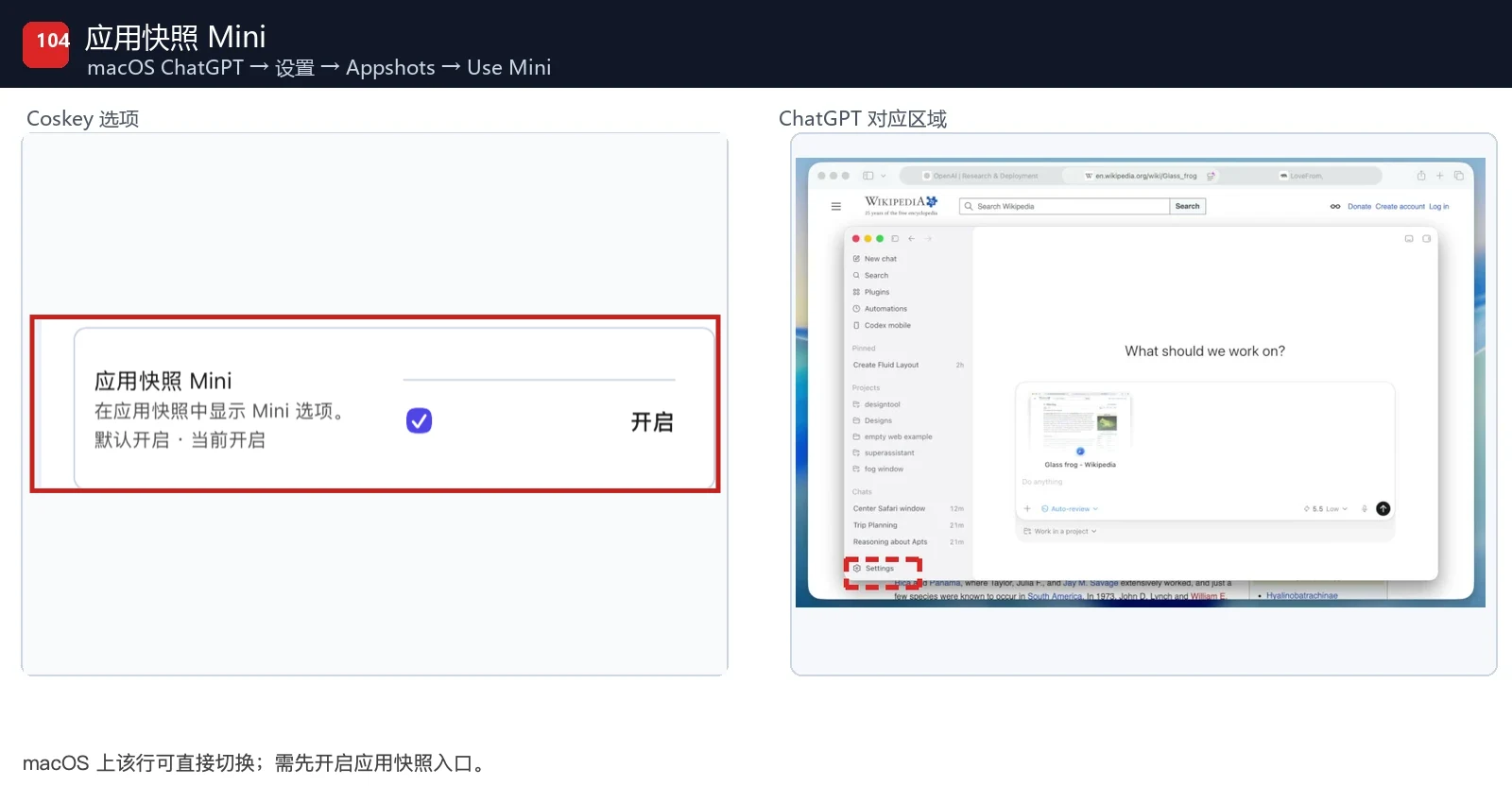
| App snapshots Mini | The macOS App snapshots Mini sub-option; not available on Windows |
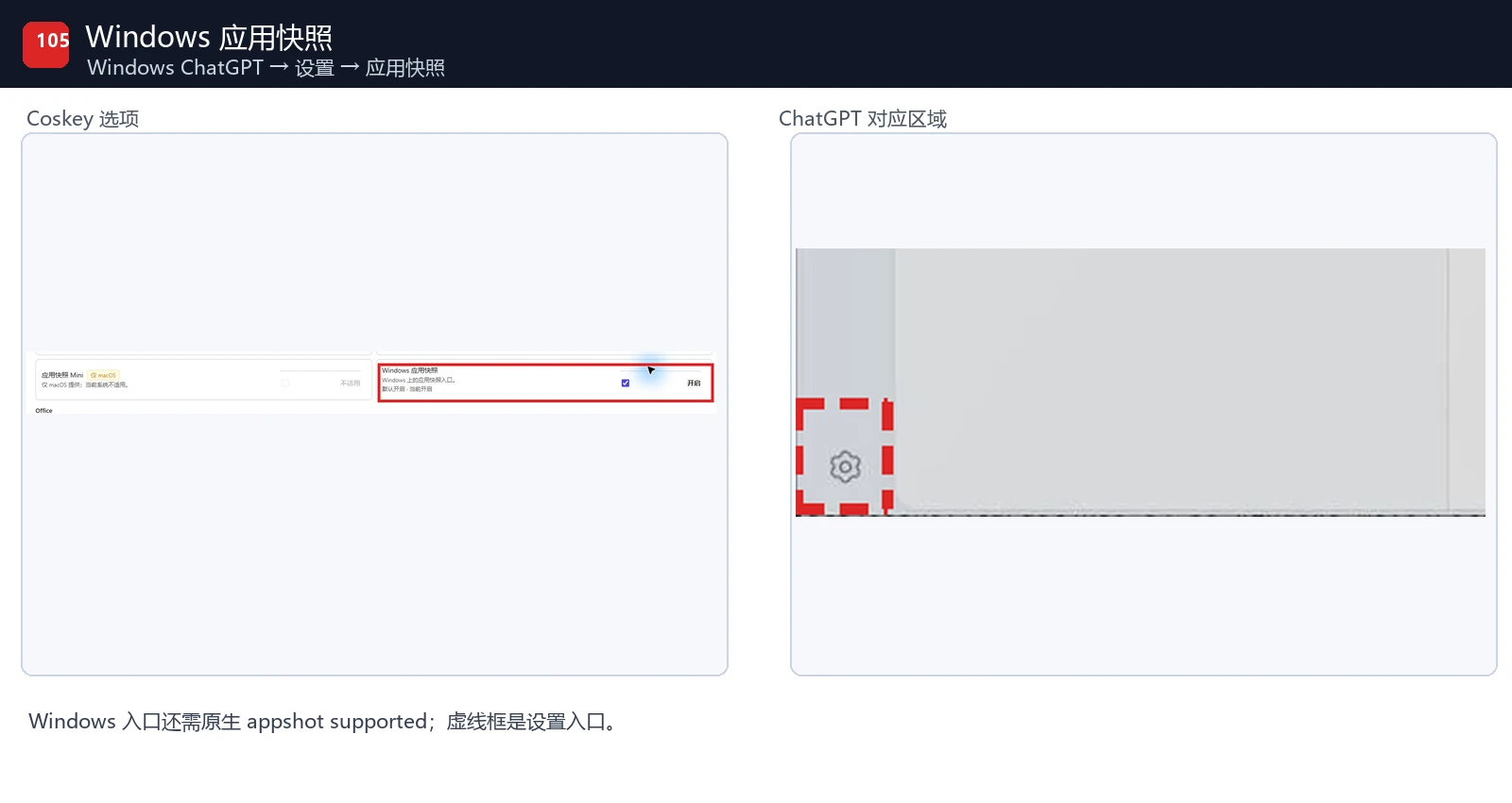
| Windows app snapshots | The Windows app snapshots entry; Windows-native support is still required |
| Office live control | Works with Office add-ins; the Primary Runtime plugin, Computer Use and the Excel add-in must each be ready |
Platform-only rows are greyed out and labelled macOS only or Windows only. For example, Windows app snapshots cannot be changed on macOS, while App snapshots Mini and the two lock-screen options cannot be changed on Windows. This is expected, not a Coskey failure.
Advanced settings
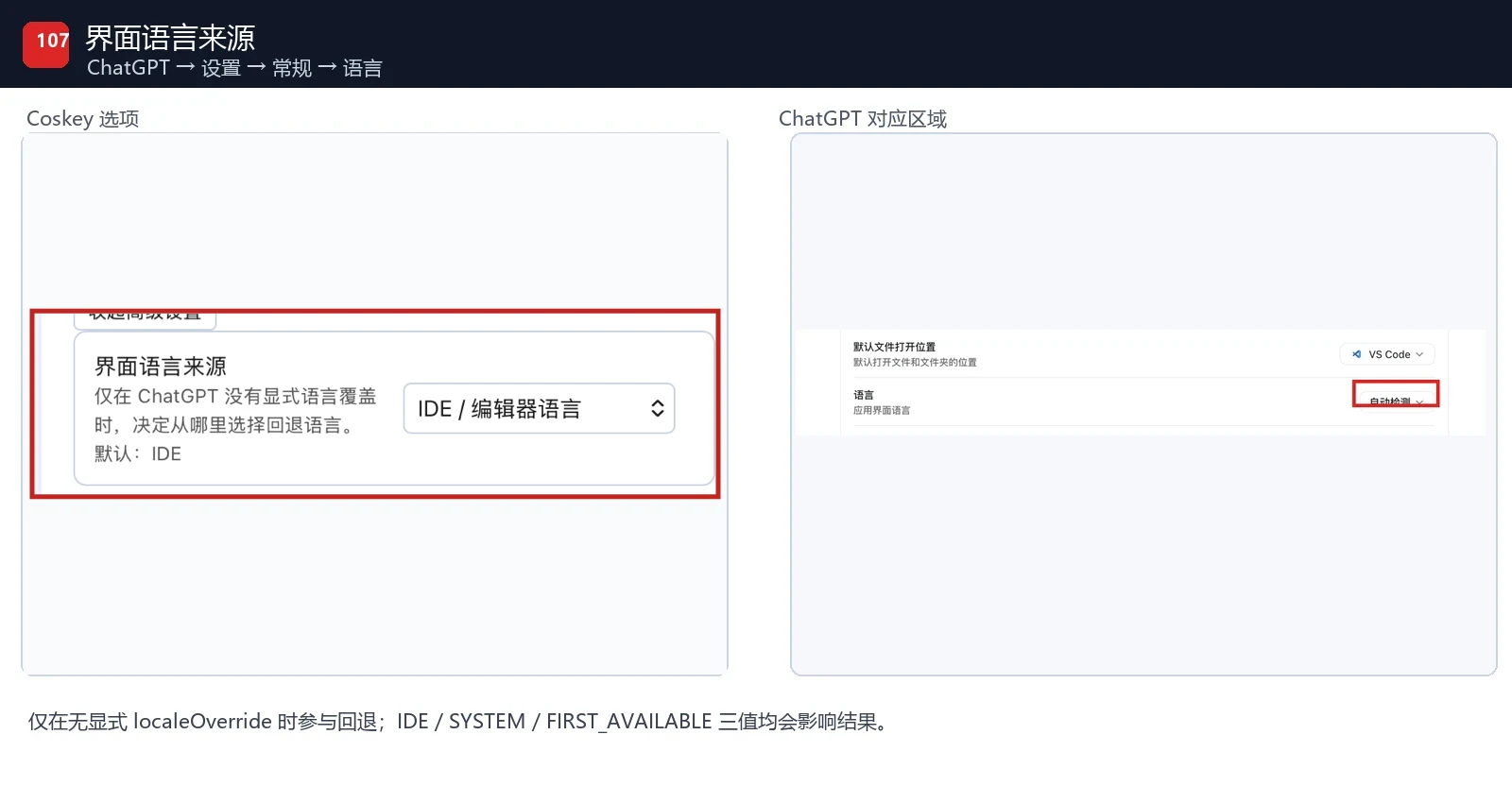
Expand Show advanced settings to reach lower-level options such as the interface language
fallback. The language source participates only when ChatGPT.app has no explicit
localeOverride:
| Value | Fallback language |
|---|---|
IDE |
The IDE / editor language |
SYSTEM |
The operating-system language |
FIRST_AVAILABLE |
Prefer the IDE language, then fall back to the system language |
Usually leave this at IDE. An explicit interface language selected inside ChatGPT.app takes
priority, so changing the fallback source does not overwrite it.
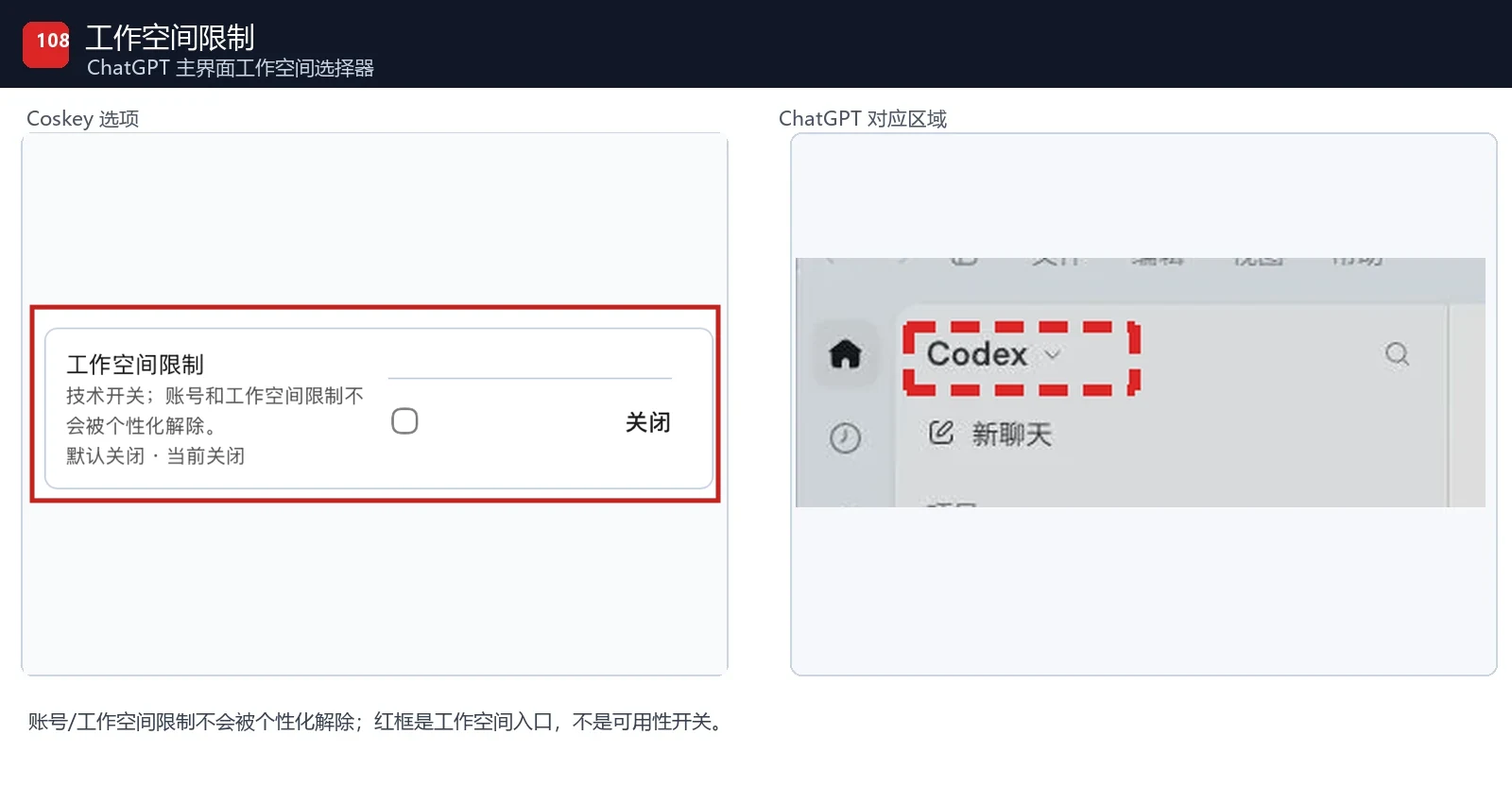
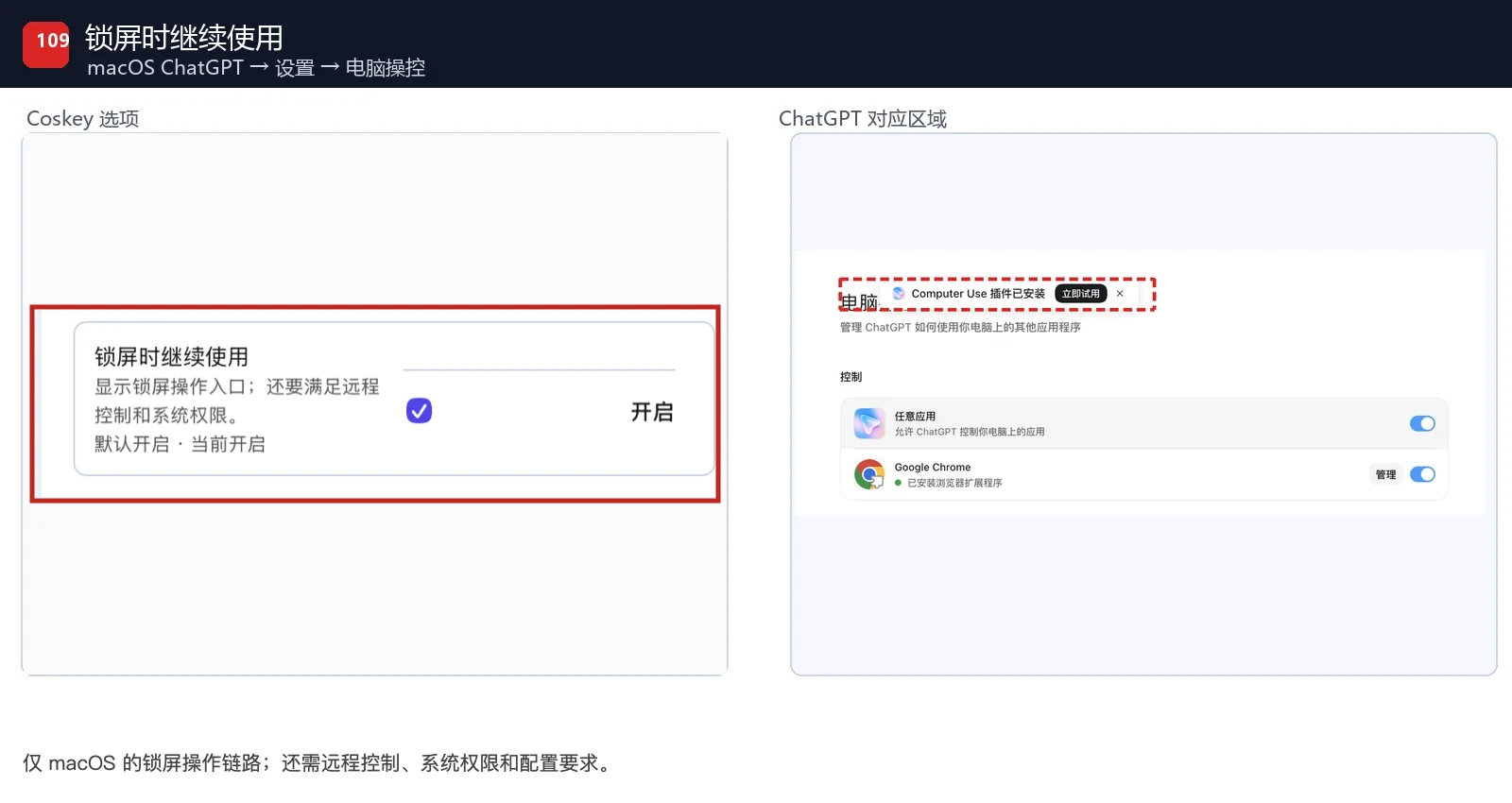
Workspace restriction does not lift an account or workspace restriction. Use while locked and locked-use prerequisite are conditional macOS capabilities that also depend on remote control, system permissions and configuration. The same principle applies to other technical switches: final availability depends on plugins, host services, permissions and the app itself.
Changing an official off value to on marks that row Non-default. Use Restore on one row
to remove only that override, or Restore all to remove every override. Both actions leave the
current default baseline unchanged.
Where each option appears in ChatGPT
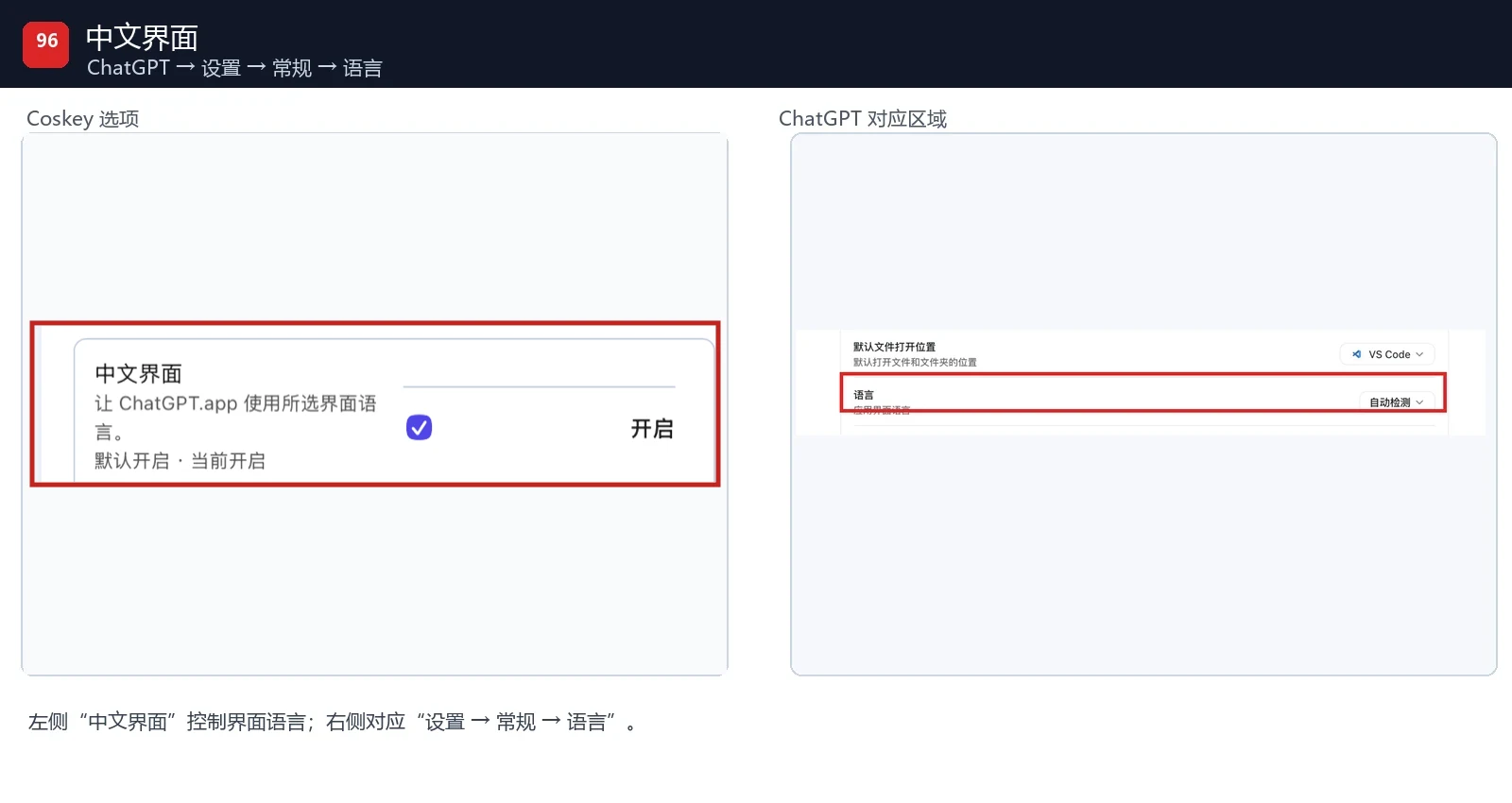
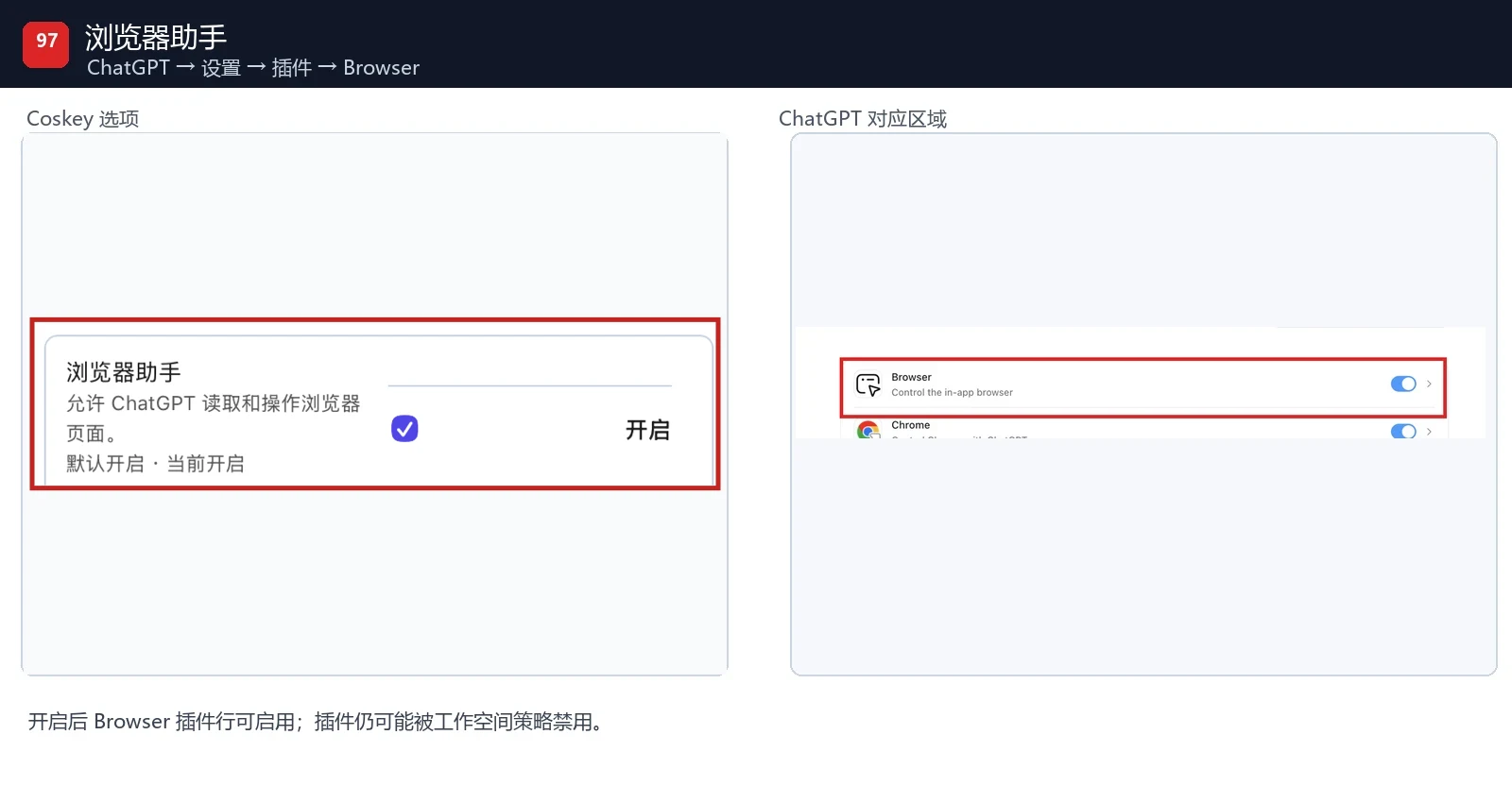
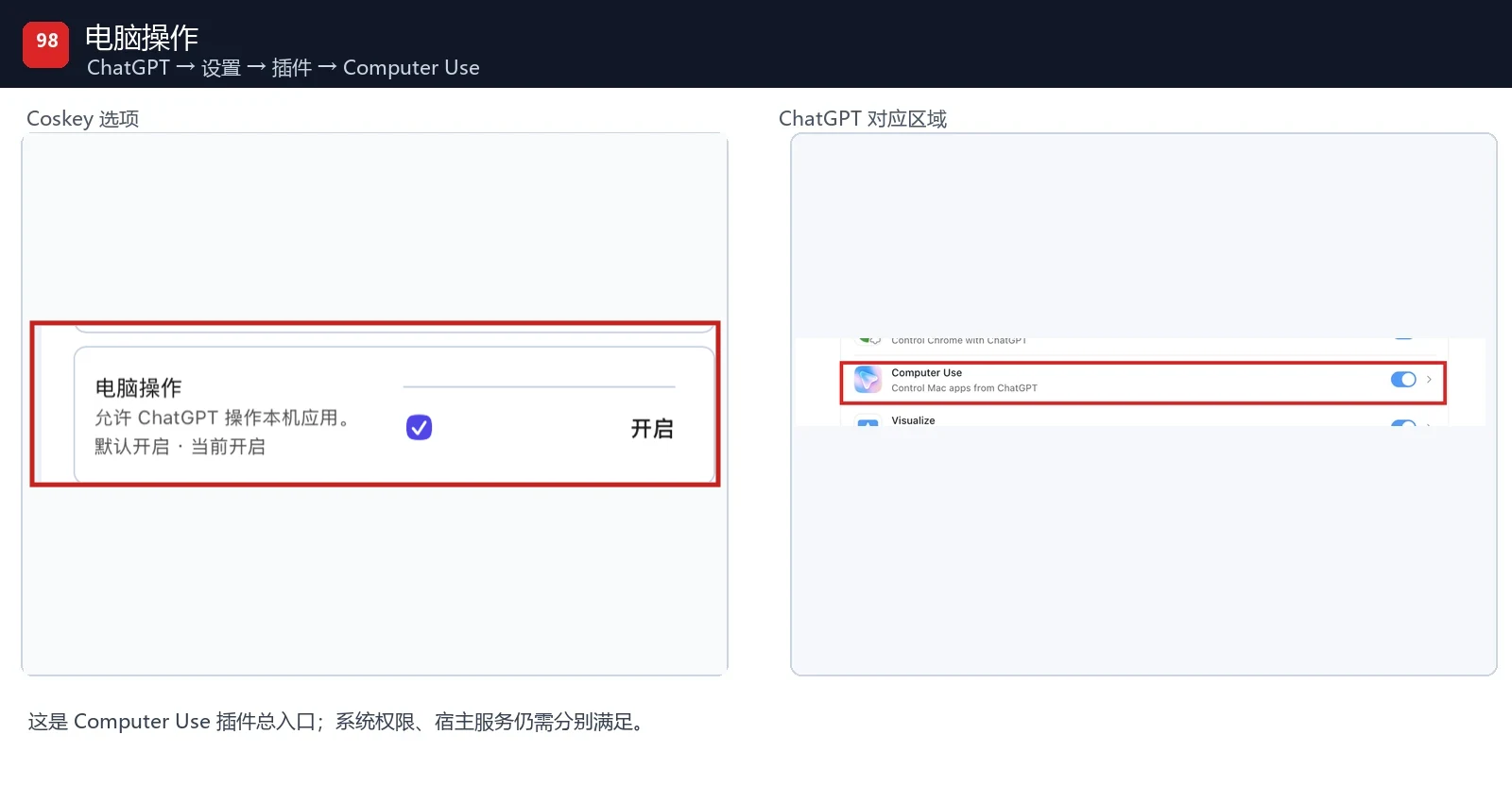
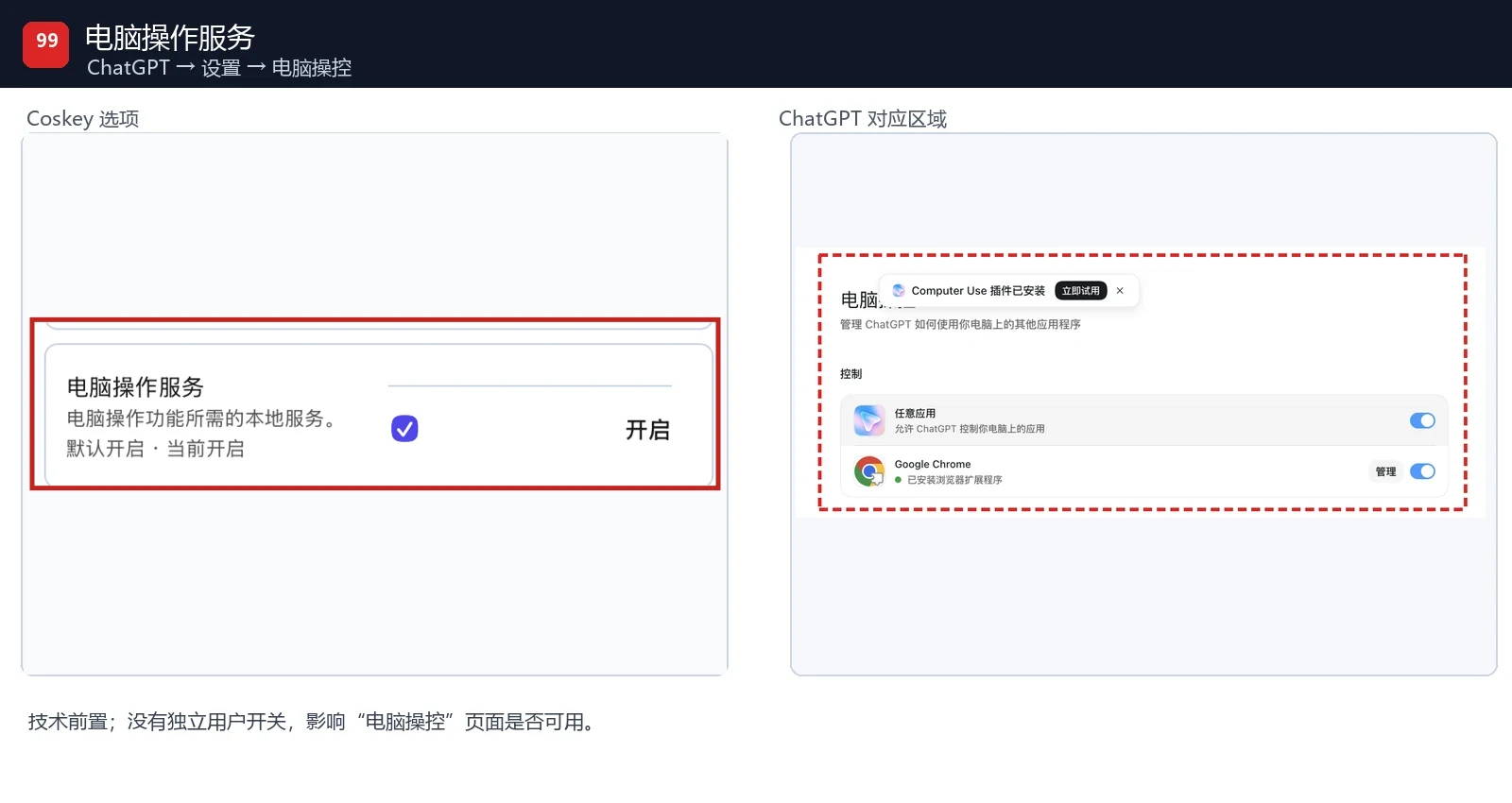
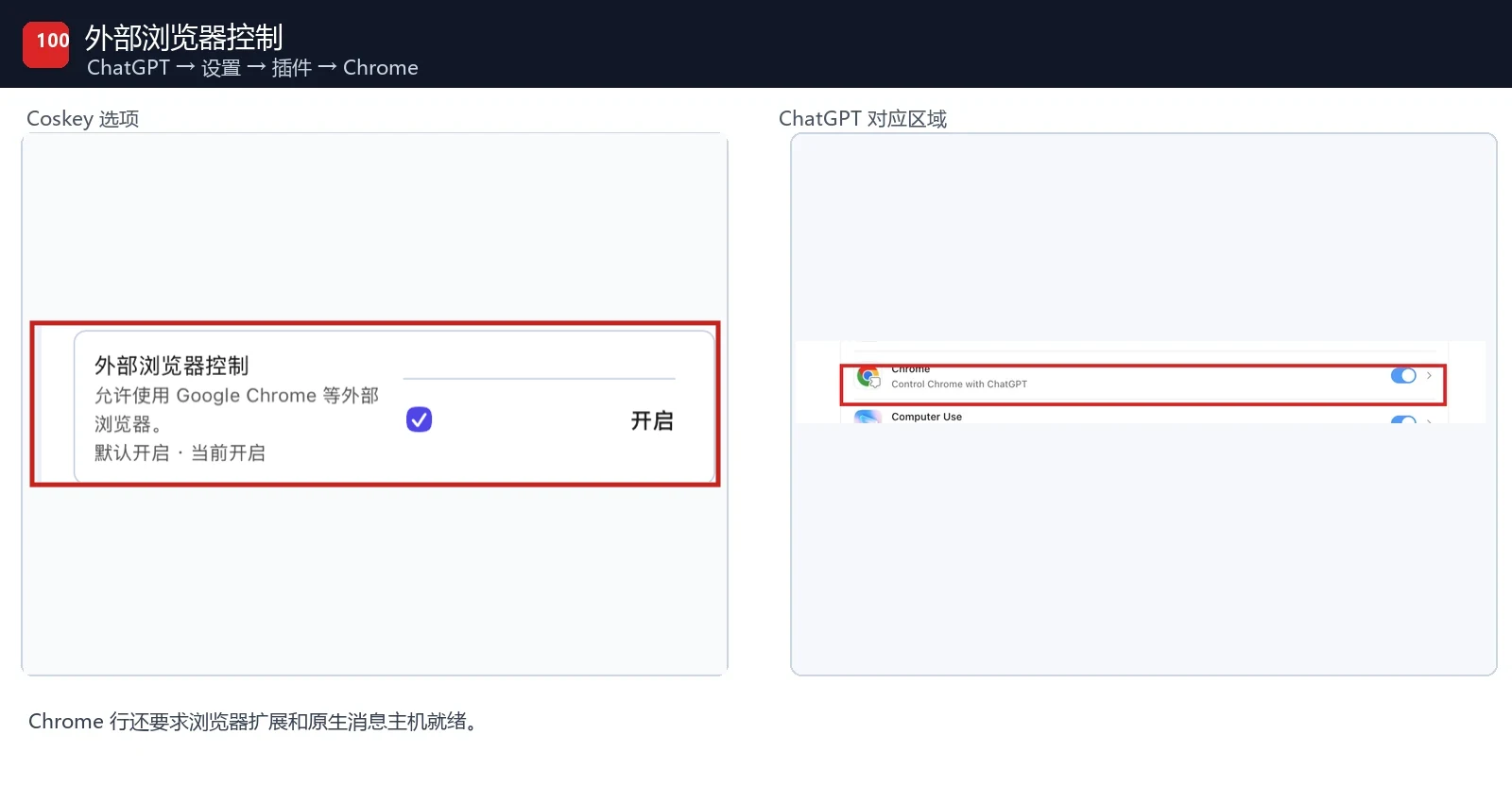
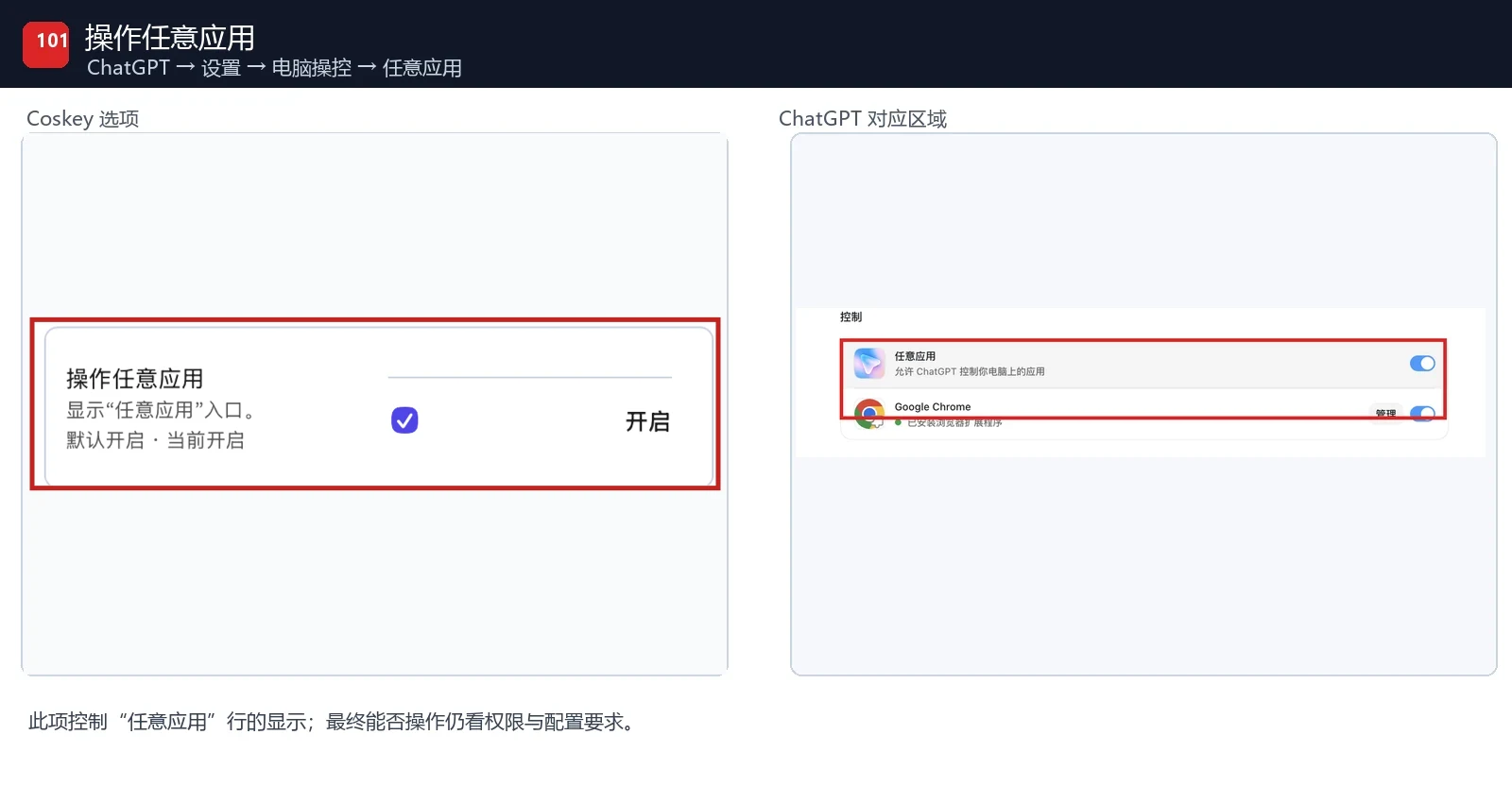
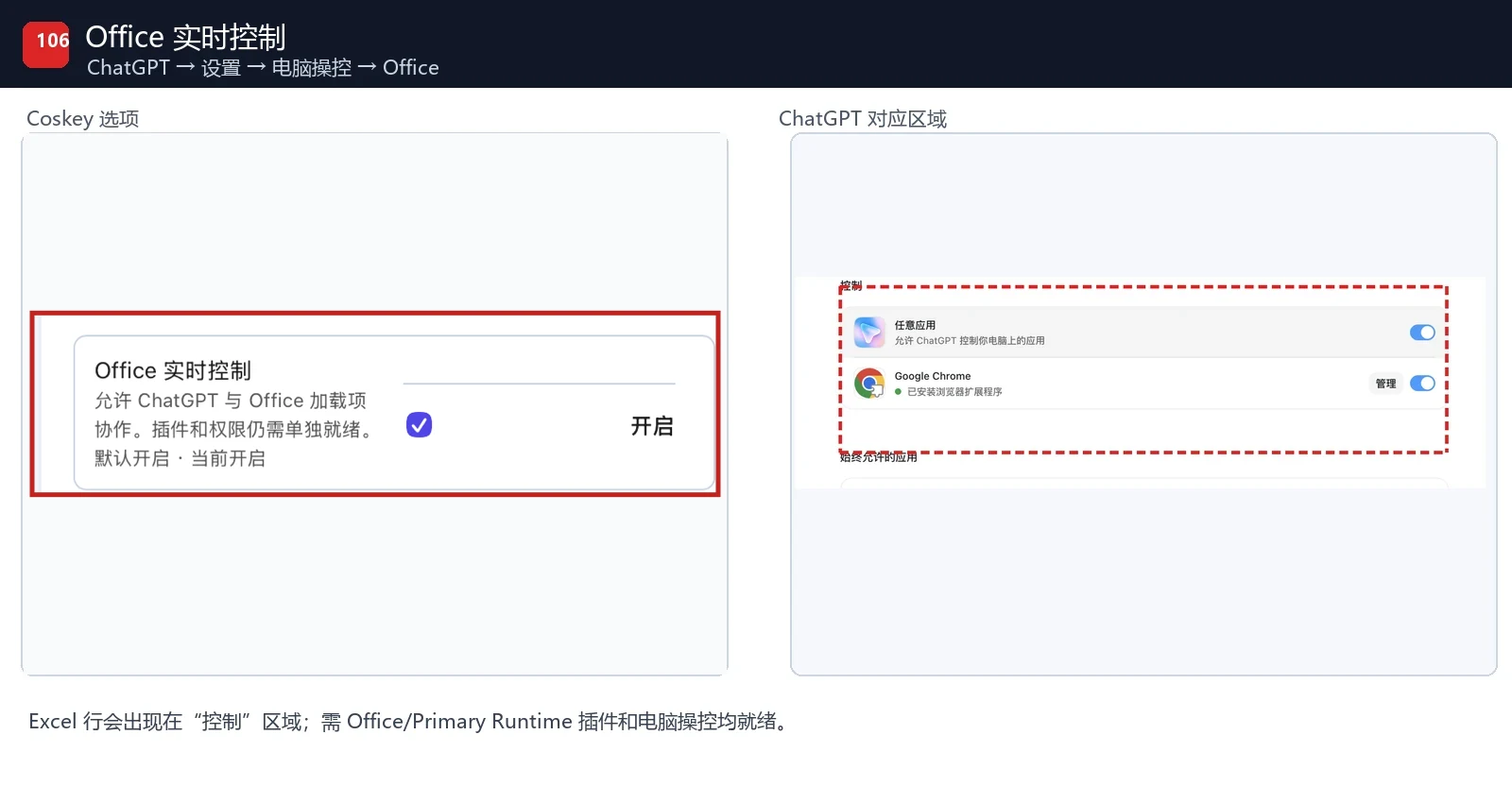
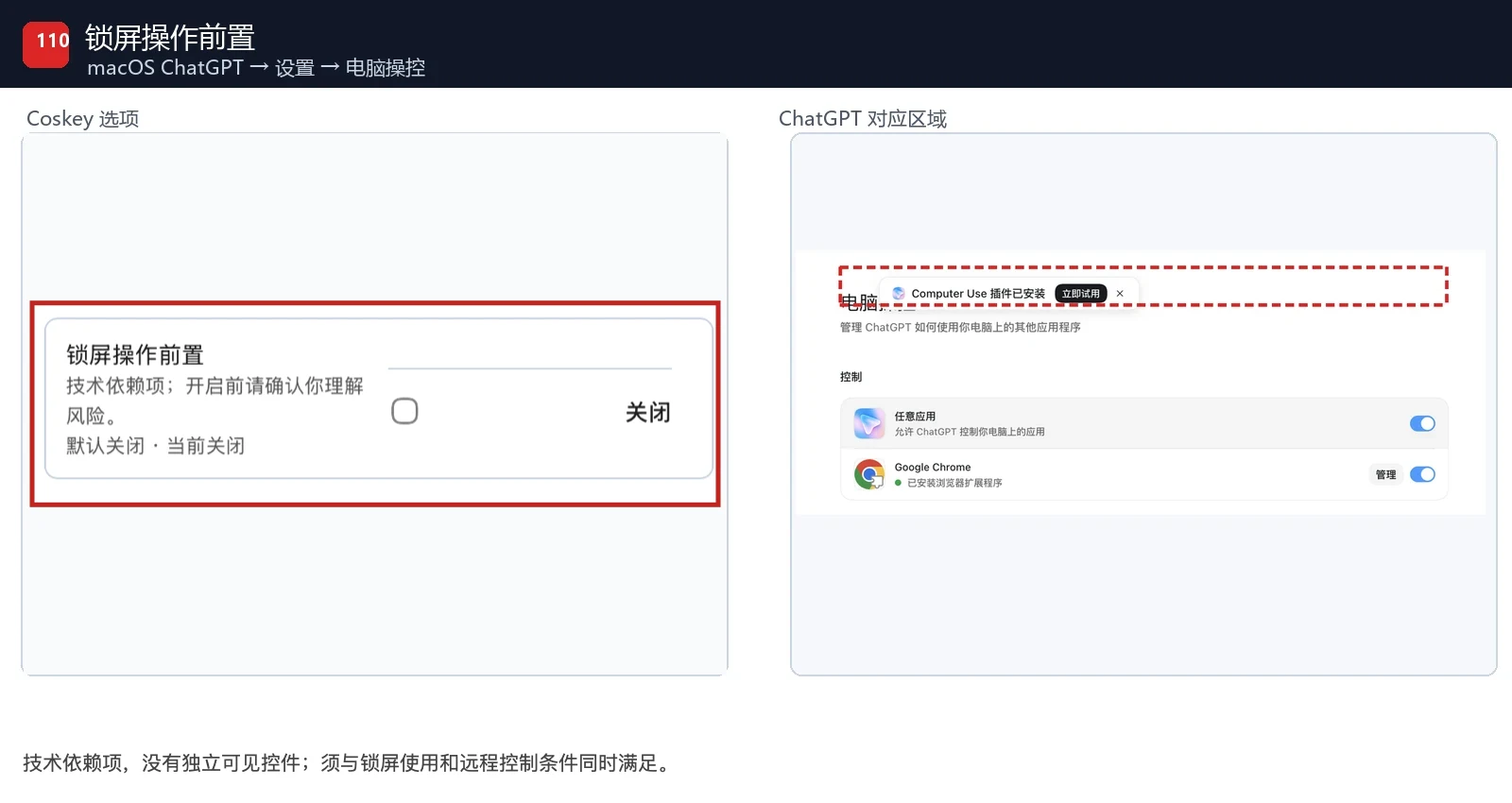
Each comparison image shows the Coskey option on the left and marks the corresponding or affected ChatGPT area on the right. A solid red frame marks a control or area available now; a dashed red frame marks an entry that appears only after the required plugin, permission or configuration is ready. It does not mean the capability is already usable. The diagrams use the Chinese interface; menu labels on Windows may differ slightly.
Common features
Chinese interface: corresponds to Settings → General → Language in ChatGPT.
Browser assistant: corresponds to Settings → Plugins → Browser in ChatGPT.
Computer use: corresponds to Settings → Plugins → Computer Use in ChatGPT.
Computer use service: this local-service prerequisite determines whether the ChatGPT Settings → Computer use page can work.
External browser control: corresponds to Settings → Plugins → Chrome. The browser extension and native messaging host must also be ready.
Operate any app: corresponds to Settings → Computer use → Any app in ChatGPT.
Interface and efficiency
Left navigation: corresponds to the icon rail at the far left of the main ChatGPT window.
App snapshots: corresponds to the App snapshots entry in ChatGPT settings; a captured window also appears as an attachment in the chat composer.
App snapshots Mini: macOS only. It corresponds to App snapshots → Use Mini and requires the App snapshots entry first.
Windows app snapshots: corresponds to the ChatGPT settings entry on Windows; Windows-native appshot support is still required.
Office
Office live control: corresponds to the Microsoft Excel row under Settings → Computer use → Office. It appears only when the Primary Runtime plugin, Computer Use and the Excel add-in are all ready.
Advanced settings
Interface language source: corresponds to Settings → General → Language in ChatGPT and participates only when no explicit language override exists there.
Workspace restriction: corresponds to the workspace selector in the main ChatGPT window. It does not remove an account or workspace restriction; the red frame marks the entry, not an availability switch.
Use while locked: macOS only. It corresponds to the lock-screen operation area under Settings → Computer use in ChatGPT and also requires remote control and system permissions.
Locked-use prerequisite: a technical dependency with no standalone visible control. It must be satisfied together with use while locked, remote control and the other configuration requirements.
5. Apply settings with a managed launch
Options are saved locally as soon as you change them, but a running ChatGPT.app does not reload them. When you are done:
- Click Open ChatGPT.app.
- If the app is already running, confirm the restart. ChatGPT.app quits and opens again, so finish any work in progress first.
- Return to Personalization and confirm that the page says ChatGPT.app started with your personalization. The usage status should also say Your personalization is active. This means the current instance was launched through the managed path.
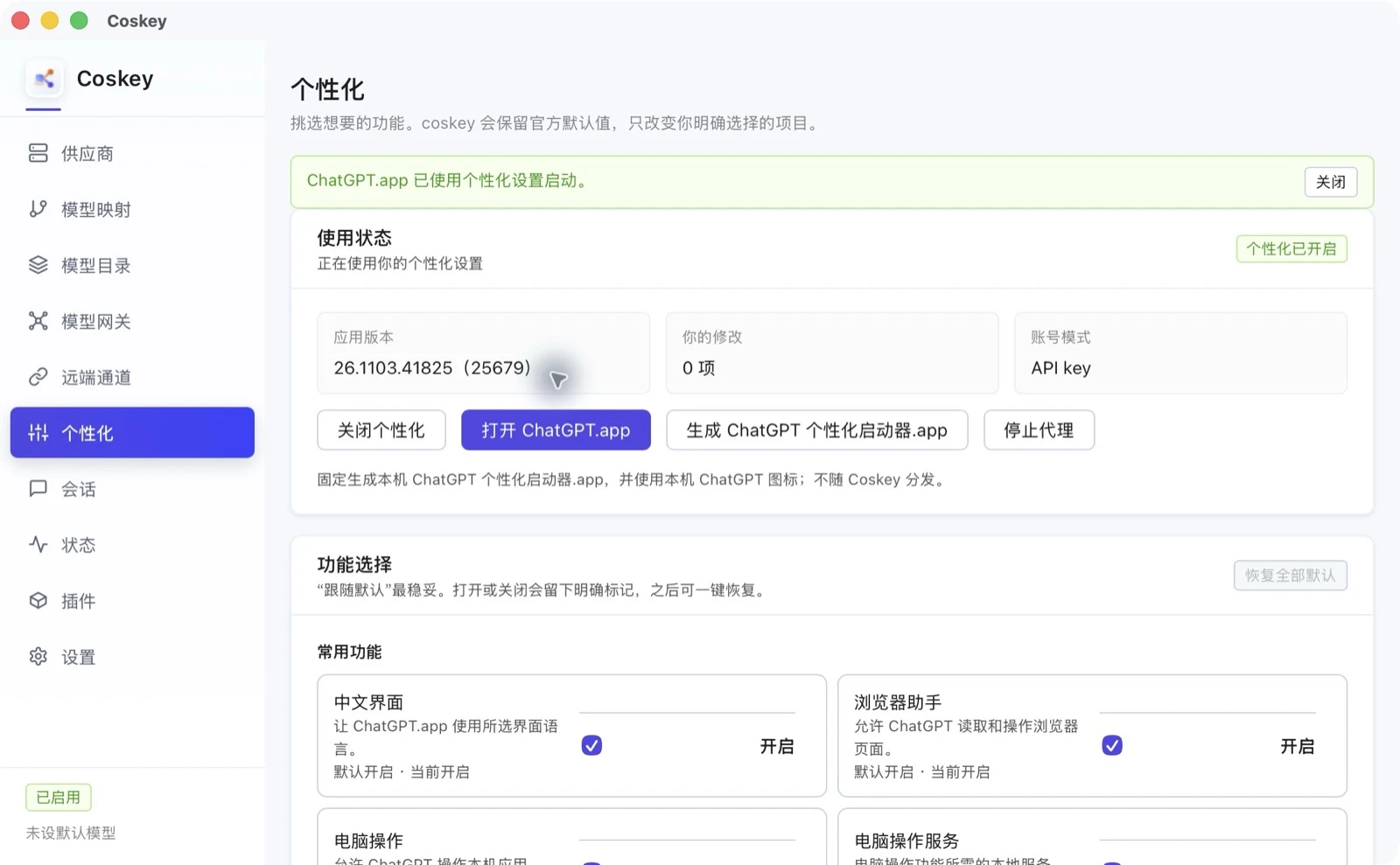
The managed launch attaches a loopback proxy plus its PAC and certificate parameters only to this ChatGPT.app process. It does not change the system proxy or root certificates. The proxy follows the app process and stops when ChatGPT.app exits.
Opening ChatGPT.app from the Dock, Finder, Spotlight, Start menu or a normal shortcut bypasses personalization. Generate the launcher in the next section if you want a repeatable entry point.
To verify the flow, turn off only Left navigation, perform a managed restart, and confirm that the left icon rail is gone. Then use Restore all and restart again.
6. Default sources, updates and resets
Personalization shows two sources: defaults bundled with Coskey, and the GitHub or Gitee download mirror currently selected in Settings. Only the active Git source card is shown. To switch remote platforms, change Download mirror in Settings.
Values always resolve in this order:
per-item user override
  > the default baseline saved by the user
  > bundled defaults
On first use, if no local personalization file exists, Coskey creates and saves one from the bundled defaults. Once a local file exists, runtime uses only its saved baseline and overrides. New defaults discovered in the background never replace your choices automatically.
After you click Check for updates, the source card shows the app version, build number, SDK version, capture time, verification state, and how many values differ from the current result. If the selected mirror is newer than the running app, it is marked as a future version and is not applied immediately.
| Action | Result |
|---|---|
| Adopt as new baseline | Replaces the default baseline, keeps still-valid user overrides and lists any overrides that no longer apply |
| Regenerate | Rebuilds the entire local setting from bundled defaults or the selected mirror and clears every user override |
| Restore (one row) | Removes only that row’s override; the default baseline stays |
| Restore all | Clears every override; the default baseline stays |
Regenerate is destructive. It first previews the target source, the number of overrides that will be cleared and the resulting differences. A second confirmation is required before writing. If the download, signature or schema verification, source revision or confirmation fails, the old local setting remains unchanged. To return to official values, prefer Restore all over regenerating.
7. Create a fixed launcher
If you do not want to open Coskey first, generate a local launcher from the Personalization page. Double-clicking it still uses the managed launch flow. If ChatGPT.app is running, it quits and reopens first.
| Platform | Generated item | Location |
|---|---|---|
| macOS | ChatGPT 个性化启动器.app |
Applications, or the current user’s Applications folder when write access is unavailable |
| Windows | ChatGPT 个性化启动器.lnk |
The current user’s desktop |
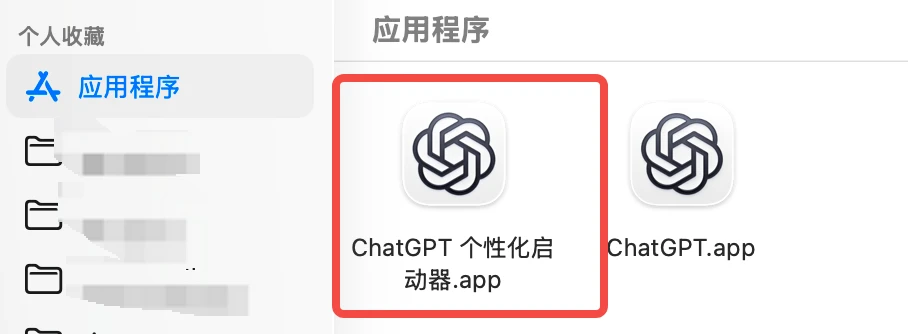
The launcher uses the installed ChatGPT.app icon. It is not distributed with Coskey and is not a re-distributable signed or notarized artifact. An existing item with the same name is not overwritten. If Coskey is uninstalled or its stable command entry is removed, the launcher reports that Coskey cannot be found; it does not bypass the managed flow.
8. Status checks and terminal entry points
Status → ChatGPT.app answers “what is wrong right now?” It reports the app, plugins, hosts, native messaging and interface language state. It is read-only and never writes automatically. All configuration now lives on the Personalization page.
Terminal users can continue to use coskey app egress:
coskey app egress status   # personalization and capability proxy status
coskey app egress launch   # start ChatGPT.app through PAC and the local certificate
The old coskey app repair and coskey app statsig seed write commands are no longer available.
When an older guide or script calls them, use the Personalization page or the new commands above.
9. Common questions
| Symptom | Fix |
|---|---|
| There are no feature switches on the Status page | Since 0.13.0 the Status page is read-only; open Personalization to configure features |
| Personalization says it does not apply | The app is not using API-key authentication; switch to an API-key session first |
| It is enabled but ChatGPT.app has not changed | Use Open ChatGPT.app for a managed restart; a normal launch does not carry the settings |
| Settings disappear after opening from the Dock or Start menu | That is a normal launch. Use Coskey or the generated personalized launcher |
| The interface is still English | Check the Chinese interface option, the app’s explicit language and localeOverride, then restart through the managed path |
| A switch is on but the plugin still does not work | Personalization only changes conditions; check plugin installation, host services, permissions and app requirements |
| The current download mirror is unavailable | Check networking and verification; use the bundled source or select another mirror in Settings |
| It says a newer default is available | Your local setting is not overwritten automatically; choose Adopt as new baseline if you want to keep your overrides |
| All my changes disappeared after regenerating | Expected: only Adopt as new baseline preserves still-valid overrides |
| A platform-only option is greyed out | That capability is not provided on the current platform |
| An old command reports that the feature was removed | Use the Personalization page or the new coskey app egress entry points |
10. Privacy and boundaries
- Only anonymous Statsig
POST /v1/initializerequests from API-key ChatGPT.app sessions are handled; - Coskey does not take over ChatGPT account sessions or read Cookies, Bearer tokens, accounts, workspaces or API keys;
- ChatGPT.app requests, user identities and local settings are not uploaded to GitHub or Gitee;
- Coskey does not modify the ChatGPT.app bundle or signature,
config.toml,auth.jsonor system root certificates; - the system proxy is not changed; a managed launch uses a local split proxy on
127.0.0.1only for that ChatGPT.app process; - Coskey does not install plugins or grant Accessibility, Screen Recording or other system permissions;
- personalization switches only change conditions supplied by Coskey; they do not guarantee a feature will work or imply OpenAI authorization.
See also: Status and settings, Plugins manual. Next: FAQ.