This guide uses the official model gpt-6.1-terra as an example and connects DeepSeek Harness
to the ChatGPT subscription models available on the Coskey host. DeepSeek Harness receives only
a ckg_… client token issued by Coskey. It never receives the ChatGPT OAuth token or another
provider’s API key; the model gateway forwards the actual request.
1. Before you begin
- Coskey is running and the model gateway is enabled;
- the Coskey host has a valid ChatGPT subscription login; an API-key login is not a substitute for a ChatGPT subscription login;
- DeepSeek Harness is installed on the same computer;
- note the Base URL shown on Coskey → Model gateway. A normal installation usually shows
http://127.0.0.1:15721/v1.
The screenshots in this guide come from an isolated instance: 17978 is that instance’s
assigned port. Use the address displayed on your own gateway page, not the port in the
screenshots.
2. Create a dedicated client in Coskey
Open Coskey → Model gateway and click Create client in the clients section:
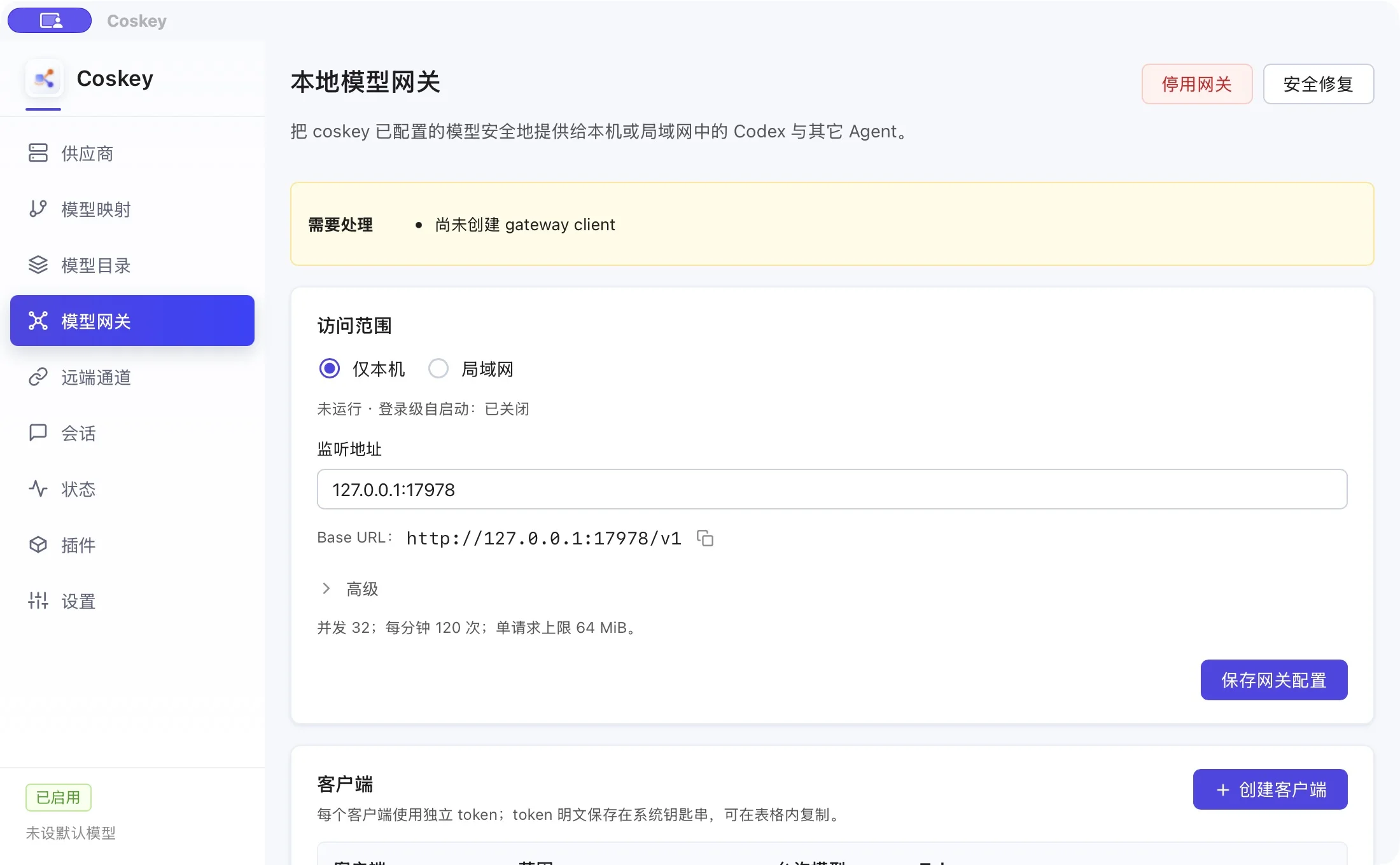
Use these values:
| Field | Example | Purpose |
|---|---|---|
| Client ID | deepseek-harness |
A gateway client dedicated to Harness |
| Scope | This computer | Use this when Harness and Coskey run on the same machine |
| Allowed models | gpt-6.1-terra |
Expose only the ChatGPT subscription model needed here |
Saving displays a ckg_… token once. Copy it now and use it as the API key in DeepSeek
Harness. Only the plaintext token is kept in the system keychain; the Coskey configuration
stores its SHA-256:
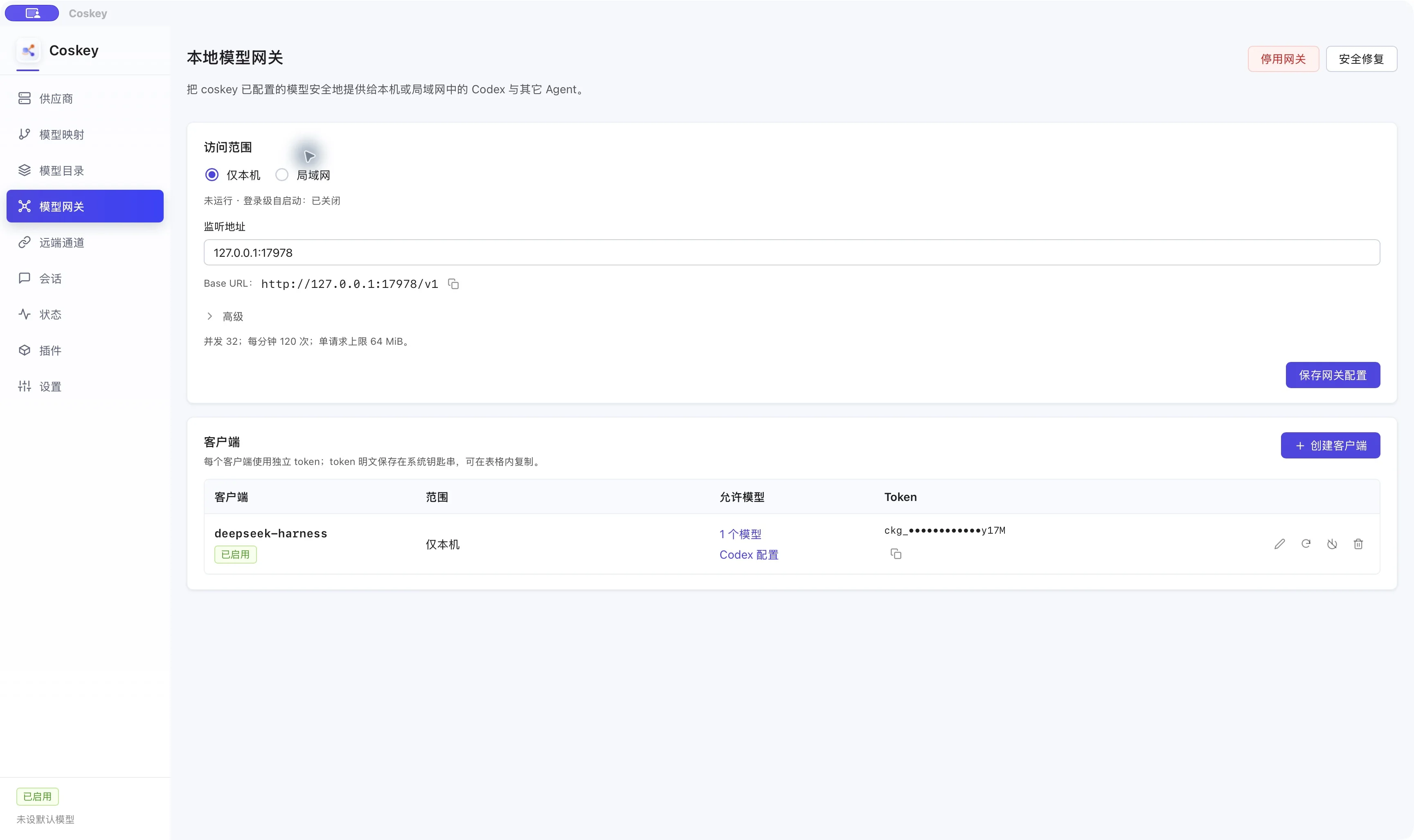
The command-line equivalent is:
coskey gateway enable
coskey gateway client add deepseek-harness \
  --scope local \
  --model gpt-6.1-terra
gateway client add also displays the token only once. To add another model later, edit the
client row and select the model there. You do not need to recreate the client or replace the
token; rotate it only if the token is lost.
3. Add Coskey to DeepSeek Harness
In DeepSeek Harness, open Settings → Models → Add model provider, choose Custom model API, and enter:
| Field | Value |
|---|---|
| Provider ID | coskey |
| Display name | Coskey |
| API address | The Base URL shown by the Coskey model gateway |
| API protocol | OpenAI Responses |
| API key | The ckg_… client token from step 2 |
Provider ID coskey is DeepSeek Harness’s local identifier; it is not the Coskey gateway client
ID deepseek-harness. Click Get available models, select gpt-6.1-terra and add it:
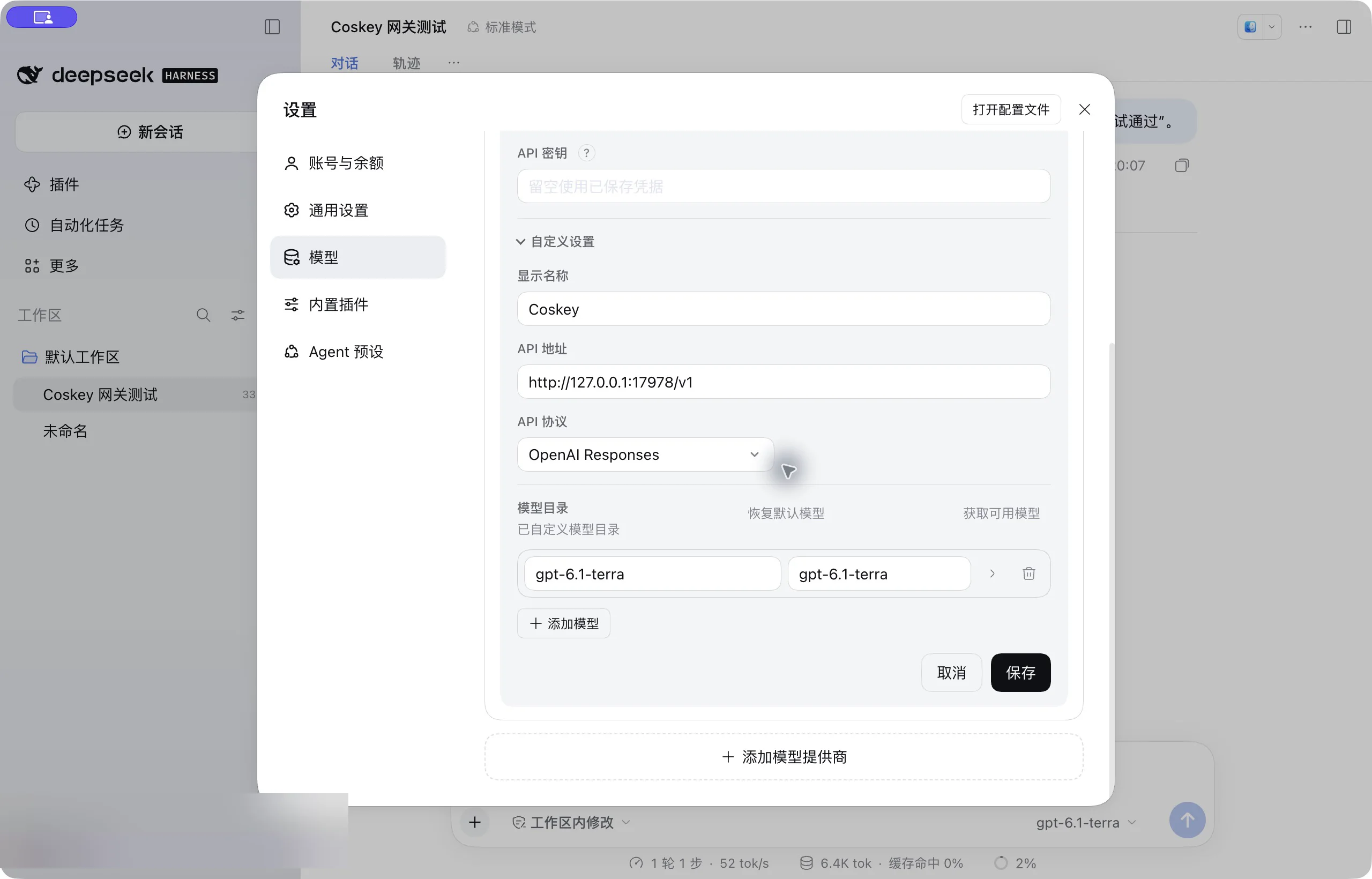
The model ID must exactly match the ID returned by the Coskey gateway. When the client allows
only gpt-6.1-terra, that should be the only model in the list. You can also add the ID by
hand.
4. Start a session and verify
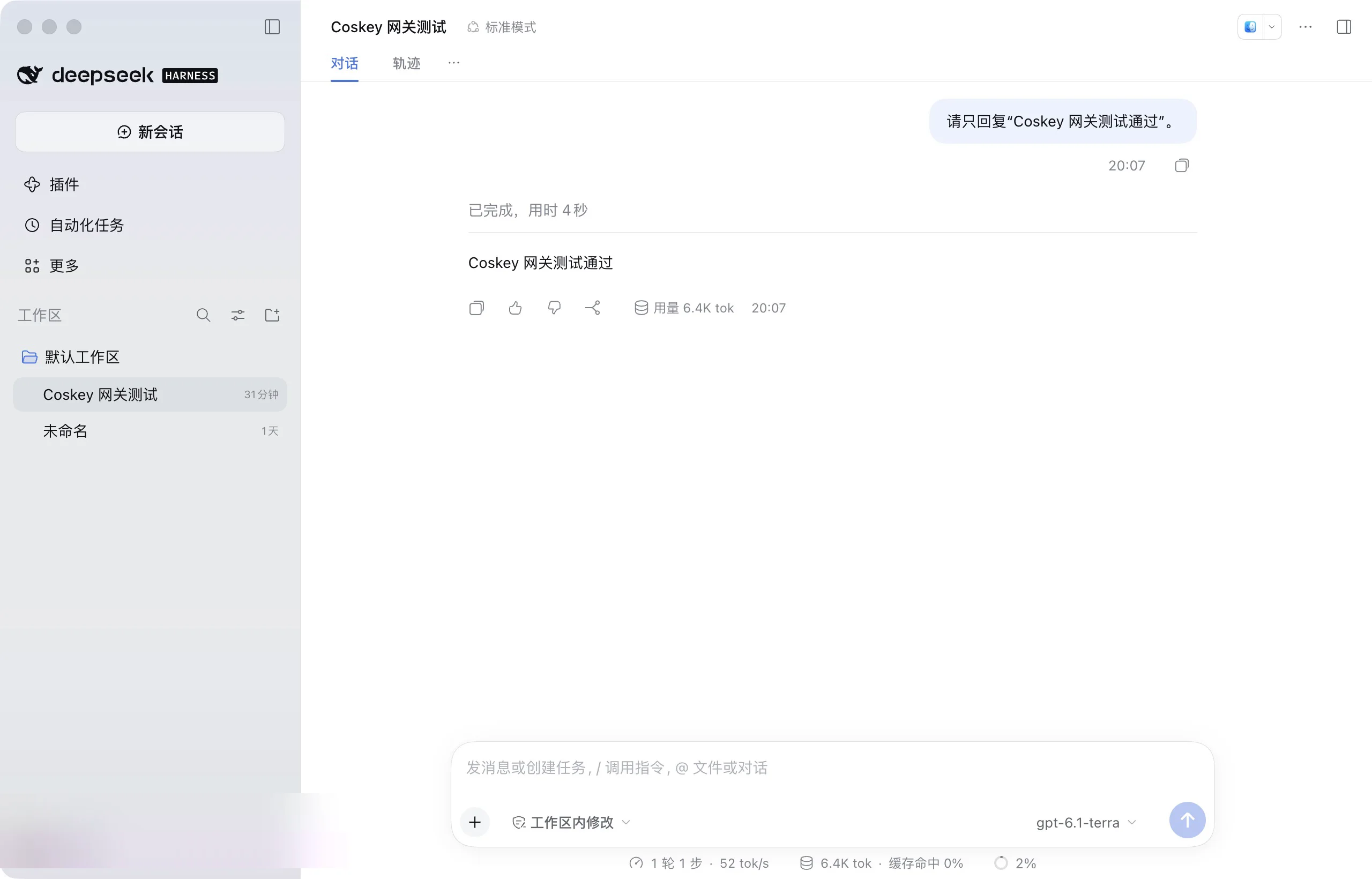
Save the provider, start a new session and confirm that the model picker shows
gpt-6.1-terra. Send a minimal test message:
Reply only with “Coskey gateway test passed”.A matching reply confirms that the Coskey client, model gateway, ChatGPT subscription login and DeepSeek Harness are connected correctly:
5. Subscription login and security boundary
gpt-6.1-terra is an official model. The Coskey gateway reads the ChatGPT subscription login in
the host’s CODEX_HOME/auth.json to make the upstream request. It reads the login without
refreshing it. The client submits only its ckg_… token; the host OAuth token does not appear
in the DeepSeek Harness configuration, gateway API responses, chat history or gateway logs.
Official and third-party models use their respective quotas: an official model uses the
ChatGPT account subscription quota on the host, while a third-party model uses its provider’s
quota. When you no longer need Harness, disable or revoke the deepseek-harness client in
Coskey; other agents’ clients are unaffected.
6. Common questions
| Symptom | What to check |
|---|---|
401 / invalid token |
Copy a token from the current client; after rotation, enter the new token in Harness |
403 |
If Harness connects over the LAN, the client scope cannot be This computer only |
| Empty model list | Check whether the client allows gpt-6.1-terra, save the client, then fetch the model list again |
host_login_required |
Check that the Coskey process running the gateway uses the expected CODEX_HOME and that it contains a ChatGPT subscription login |
UNSUPPORTED_REASONING_EFFORT |
In Harness, switch to another model and back to gpt-6.1-terra, making sure no high reasoning level remains |
| Harness connects but requests fail | Return to the Coskey gateway page and use Test connection to verify the health endpoint, authentication and a minimal request |
If the problem remains, run coskey gateway status and coskey doctor in Coskey. The gateway
log is ~/.coskey/logs/gateway.log; it never contains tokens, upstream keys, prompts or
completions.
Related: Model gateway, Status and settings.