When a plugin publisher gives you a ZIP, import it into Coskey’s local plugin marketplace first, then install or upgrade it in ChatGPT.app. This avoids waiting for a remote index update and still keeps ChatGPT.app’s installation confirmation in the loop.
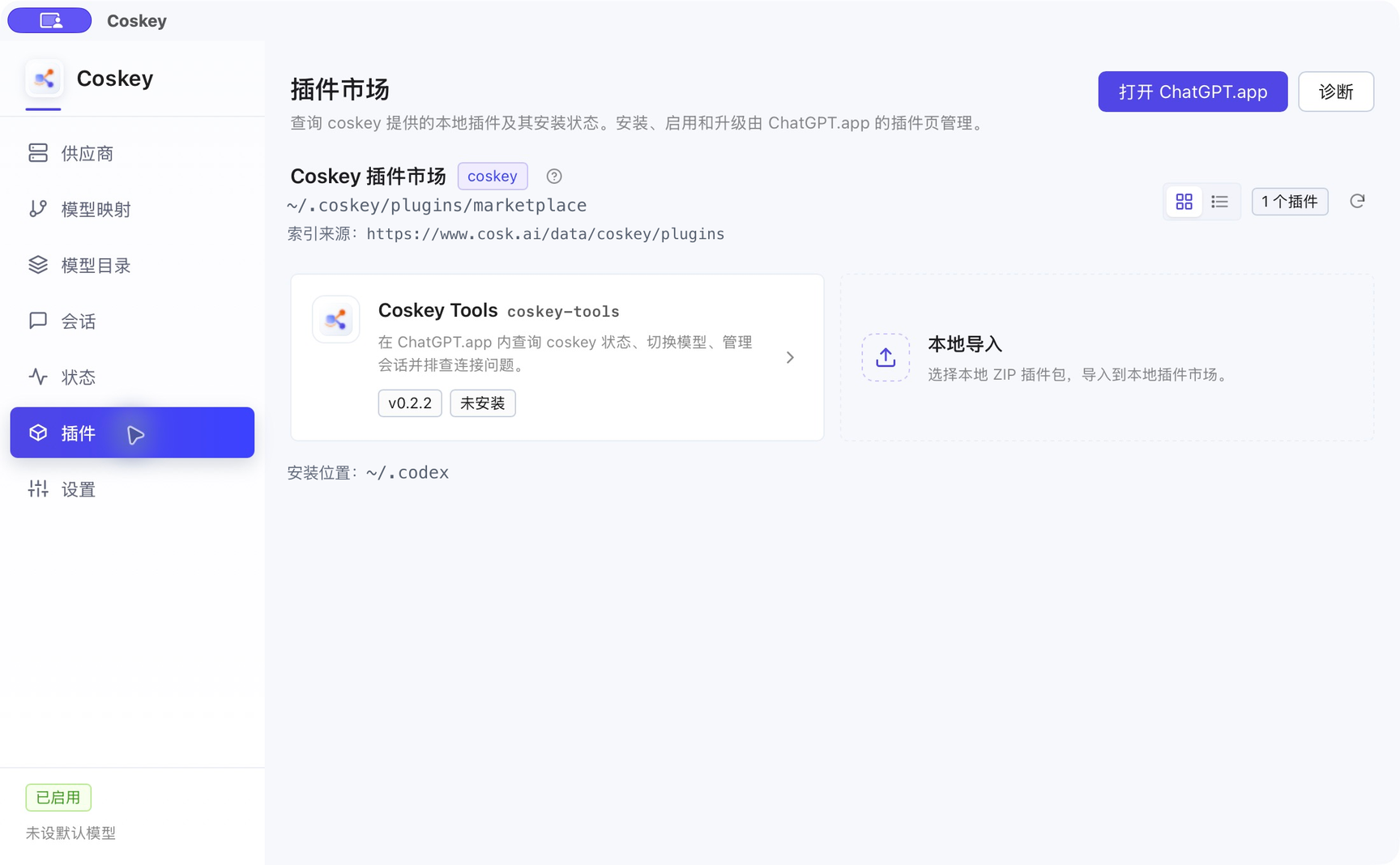
1. Importing is not installing
Local import only validates the ZIP and adds it to the local marketplace. It does not install the plugin in ChatGPT.app:
| Action | Where | Result |
|---|---|---|
| Local import | Coskey → Plugins | Validates the ZIP and adds it to the local marketplace; the card is marked Local |
| Install / enable / upgrade | ChatGPT.app → Plugins | Copies the plugin into the app cache and records its enabled state |
Seeing Not installed in Coskey after an import is expected. Refreshing the marketplace also does not remove a local plugin.
2. Prepare the plugin ZIP
The plugin package must be a .zip file with plugin.json at its root:
my-plugin.zip
├── plugin.json
├── assets/
│   └── logo.svg          # optional display icon
├── skills/
│   └── example-skill/
│       └── SKILL.md
├── mcp.json              # optional
└── server/               # optional, for a local MCP
One wrapper directory is also accepted, for example my-plugin/plugin.json. Files cannot be split
between the root and a subdirectory; Coskey removes at most one wrapper directory.
Before importing, make sure that:
- the root or sole wrapper contains
plugin.json, encoded as UTF-8 JSON; nameand a semverversionare present, andnameis not the reserved built-in plugincoskey-tools;- the package includes at least one
skills/<skill>/SKILL.mdor a validmcp.json; - the ZIP contains no symbolic links, absolute paths,
..segments, backslash paths, case-insensitive duplicate paths or Windows reserved names; - the source is a regular
.zipfile rather than a symbolic link.
Current import limits:
| Item | Limit |
|---|---|
| ZIP size | 2 GiB |
| ZIP entries | 409,600 |
| Total extracted size | 10 GiB |
plugin.json size |
1 MiB |
If you built the ZIP yourself, check its first entries:
unzip -Z1 my-plugin.zip | sed -n '1,20p'plugin.json should appear near the start, either directly or inside one wrapper directory.
3. Import the ZIP
- Open Coskey → Plugins.
- Click Local import at the end of the plugin list.
- Choose the prepared
.zipfile.
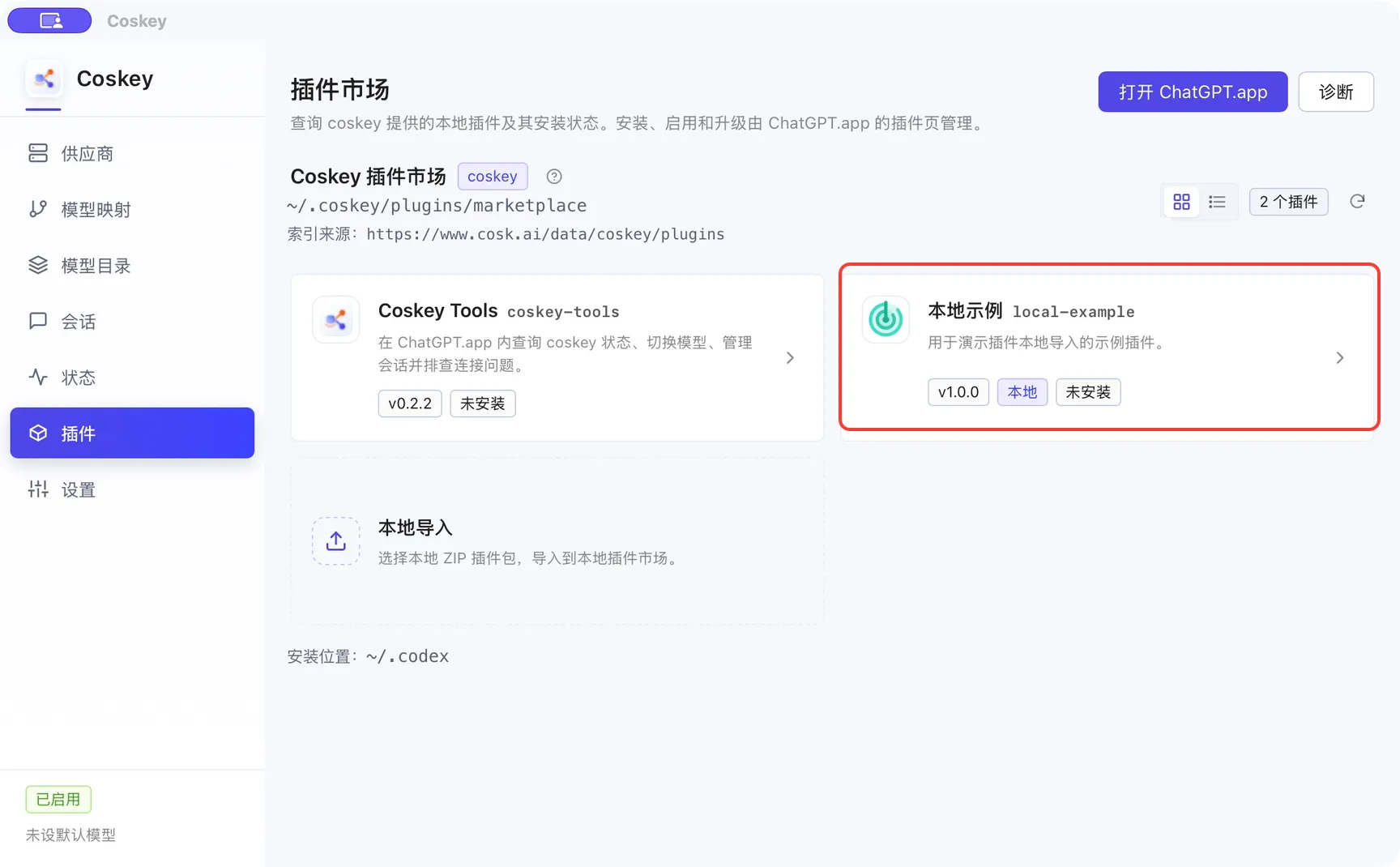
Coskey checks the file type, size, paths and manifest before adding it to the local marketplace; a failed import leaves existing versions intact. A green confirmation appears and the list gains a plugin card marked Local:
If the plugin has a display icon, include it in the ZIP and point
extensions.com.openai.interface.logo at its relative path inside the package, for example
./assets/local-example-logo.svg. Do not use a local path such as ~/Downloads/...; after import,
ChatGPT.app reads the icon from the plugin manifest.
Three details on the card are worth checking:
| Detail | Meaning |
|---|---|
| Version | The version currently held in the local marketplace |
| Local | The source is local-import; refreshing the marketplace keeps it |
| Not installed / Enabled | Whether ChatGPT.app has installed and enabled it |
Click the card to inspect its display name, plugin id, marketplace path, skills, MCP capabilities and installation state. A plugin with a local MCP clearly states that it runs commands on this machine; verify the source and MCP name before installing it.
4. Install or enable it in ChatGPT.app
- Click Open ChatGPT.app in Coskey.
- Open Plugins in ChatGPT.app.
- Select the Coskey plugin marketplace.
- Find the imported plugin and install it; reinstall or enable it if it was already installed.
- Return to Coskey and click Refresh if the installation status has not updated.
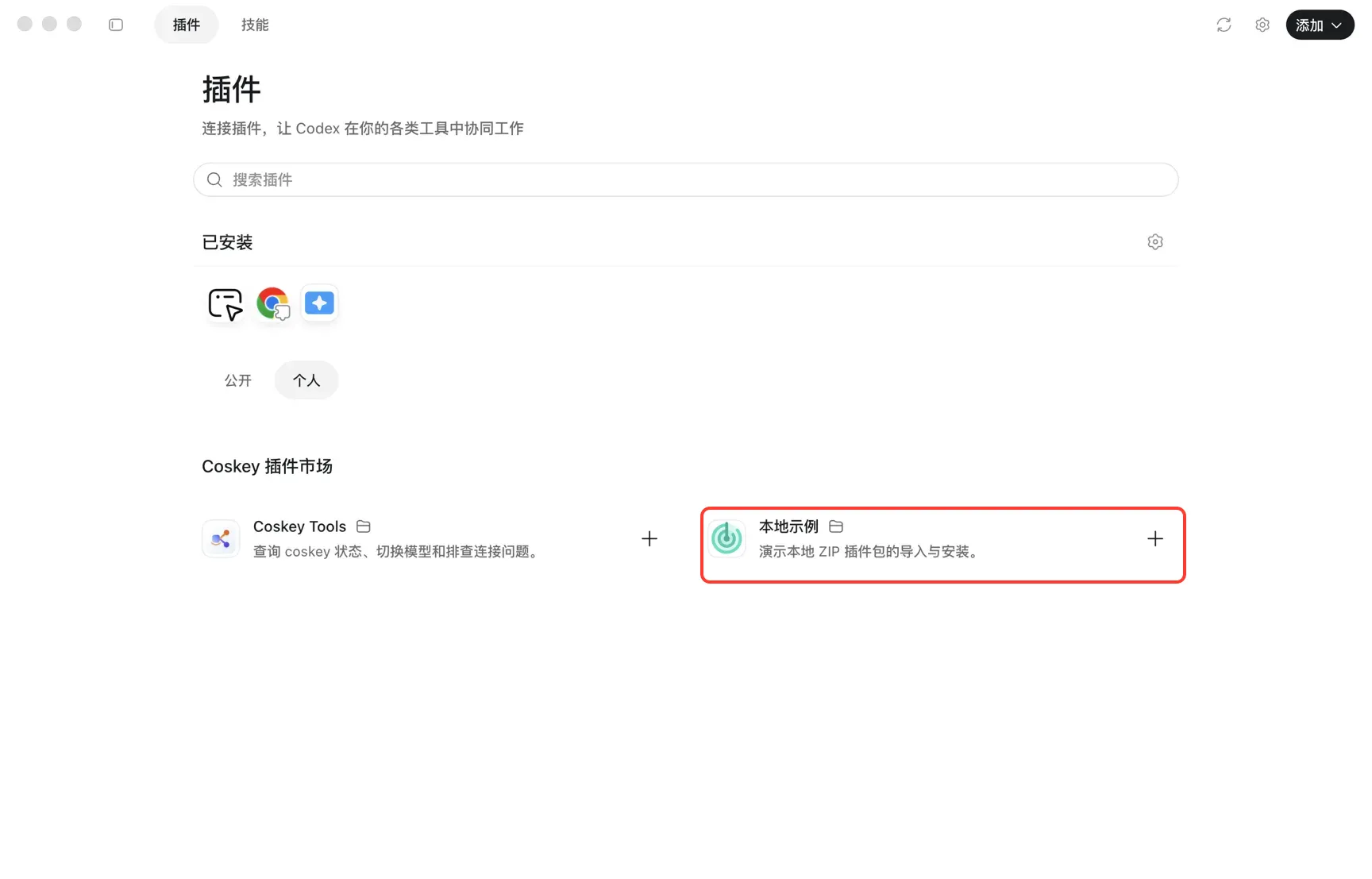
The top of the Plugins page is the Installed area; entries from Coskey’s local marketplace appear under Coskey plugin marketplace below it. The + on the right of each card is the install entry point:
Open a card to see its details: display name, author, description, plus skills and Information (developer, category, version, website). A plugin with a local MCP also gets an MCP servers section; check the name and source there before installing. The Install plugin button at the top right of the detail page does the same thing as the + on the list card:
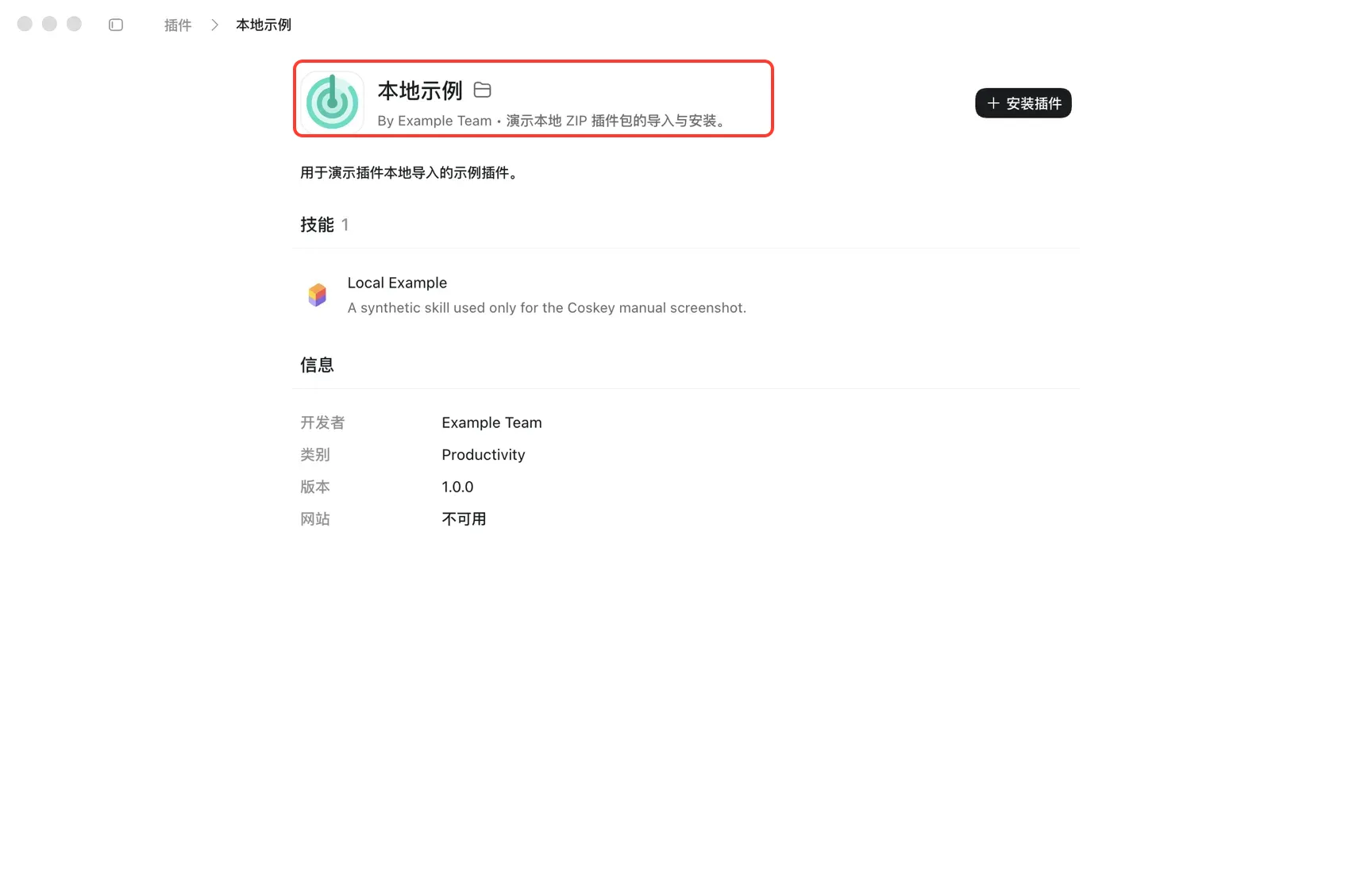
Both screenshots come from the manual’s isolated instance and show its demo Local Example plugin. Your own list and details show whichever plugins you installed or imported.
Coskey never writes ChatGPT.app’s plugin cache for you or bypasses the app’s installation confirmation. The plugin becomes available in ChatGPT.app after the card shows Installed and enabled.
5. Upgrade and roll back
To update a local plugin:
- Import the ZIP for the new version under the same plugin name.
- The new version becomes the active version in the local marketplace.
- Reinstall or upgrade the plugin in ChatGPT.app.
- Confirm in Coskey that the app cache now uses the expected version.
Importing a new version does not replace the old cache in ChatGPT.app automatically. If the detail page offers a previous generation, you can roll back the marketplace copy and reinstall in ChatGPT.app; the app continues to use whichever version was last installed from its Plugins page.
6. Troubleshooting
| Symptom | Fix |
|---|---|
| Nothing happens after choosing a ZIP | Confirm the extension is .zip and that the source is not a symbolic link; Cancel makes no changes |
plugin.json was not found |
Put plugin.json at the ZIP root, or use exactly one wrapper directory containing it |
| Name or version is invalid | name cannot be coskey-tools; version must be semver such as 1.0.0 |
| No skills or MCP were found | Add at least one skills/<skill>/SKILL.md or a valid mcp.json |
| A ZIP entry is invalid | Remove symbolic links, absolute paths, .. segments, backslash paths and duplicate paths, then repackage |
| The imported card says Not installed | Expected: import only updates the local marketplace. Install it from ChatGPT.app’s Plugins page |
| A Local plugin survives a refresh | Expected: refreshing the remote index does not delete local imports |
| ChatGPT.app cannot find the plugin | Reopen ChatGPT.app and choose the Coskey plugin marketplace; if it is still missing, run Diagnostics from Coskey’s Plugins page |
| ChatGPT.app still uses the old version after an import | Reinstall or upgrade it from ChatGPT.app’s Plugins page; refreshing Coskey alone is not enough |
If the Plugins page is unavailable, the marketplace is missing, or the interface language is wrong, see ChatGPT.app checks and personalization.
7. Security boundary
Local import checks the package structure and paths; it does not audit the plugin’s code. A package with a local MCP may run commands on your computer after it is enabled, so import only trusted sources and review the permission details before installing.
Related: ChatGPT.app checks and personalization, FAQ.